Exam Composer
The Exam Composer allows you to compile approved questions into a complete exam and export it in various formats.
Prerequisite
In the Exam Composer, only questions that have been approved in the Review Queue are available. Generate questions and review them first before you compose an exam.
Create a New Exam
Step 1: Open Exam Composer
Click on Exam Composer in the navigation or select the corresponding tile on the Dashboard. Route: /exams/compose.
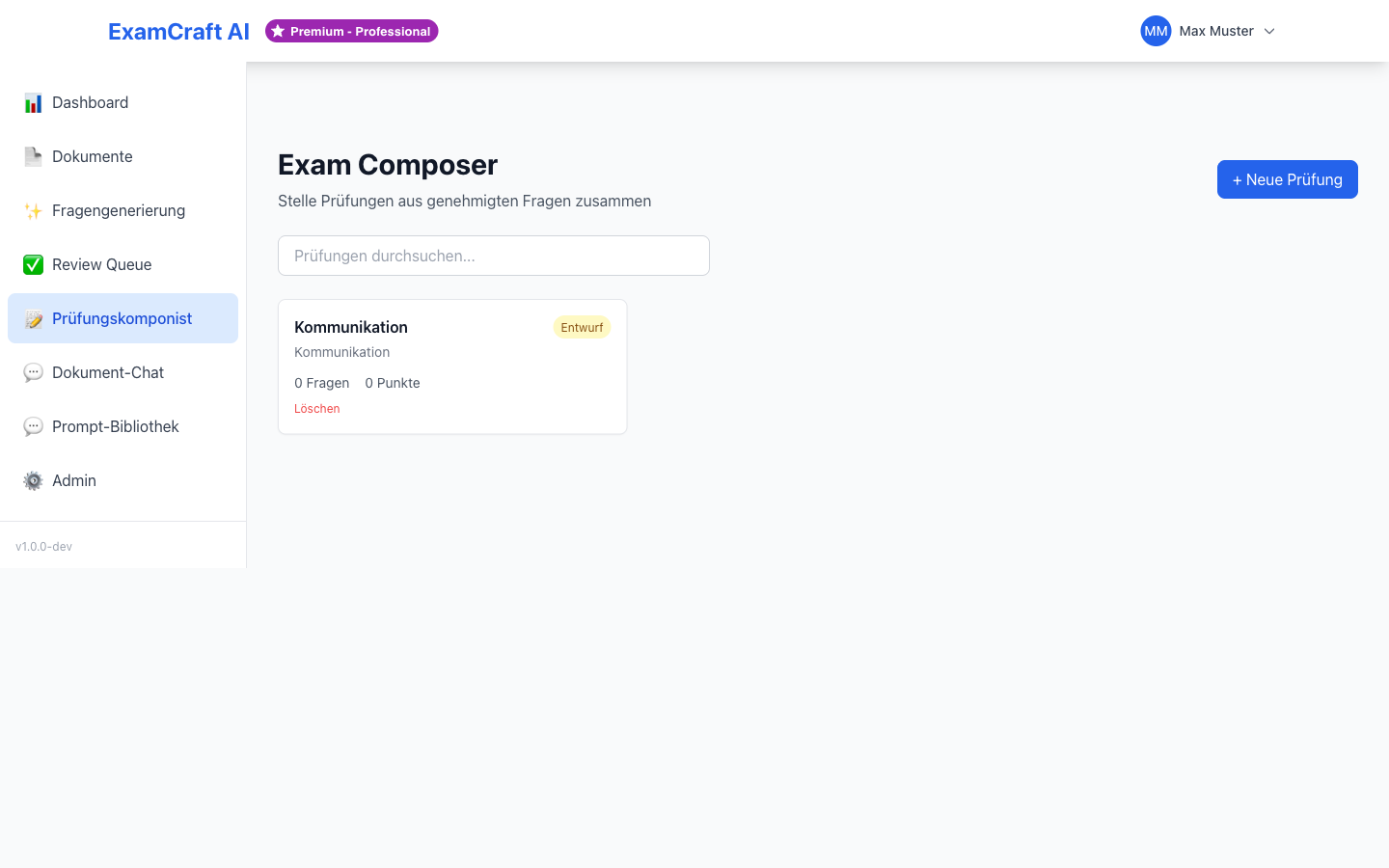
Step 2: Start a New Exam
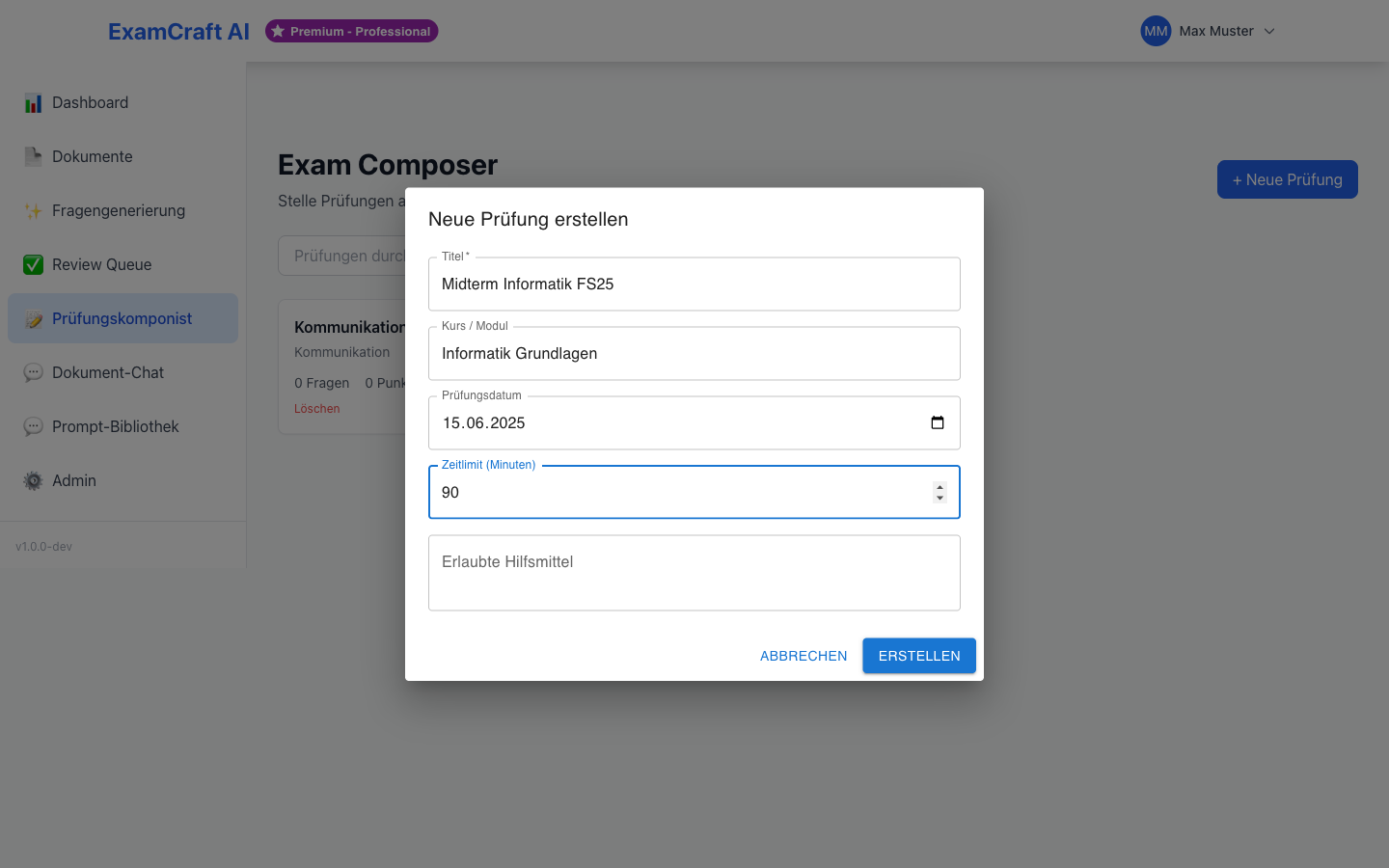
Click on Create New Exam and fill in the following fields:
| Field | Description |
|---|---|
| Title | Name of the exam (e.g., "Algorithms — Semester Exam 2026") |
| Description | Optional additional information about the exam |
| Date | Planned exam date |
The title is the key element that uniquely identifies your exam. Choose a meaningful name that clearly indicates the subject, course, and time period. The description provides additional context for you and your colleagues — such as information about difficulty level, target audience, or special focus areas.
Choose Grade Scale
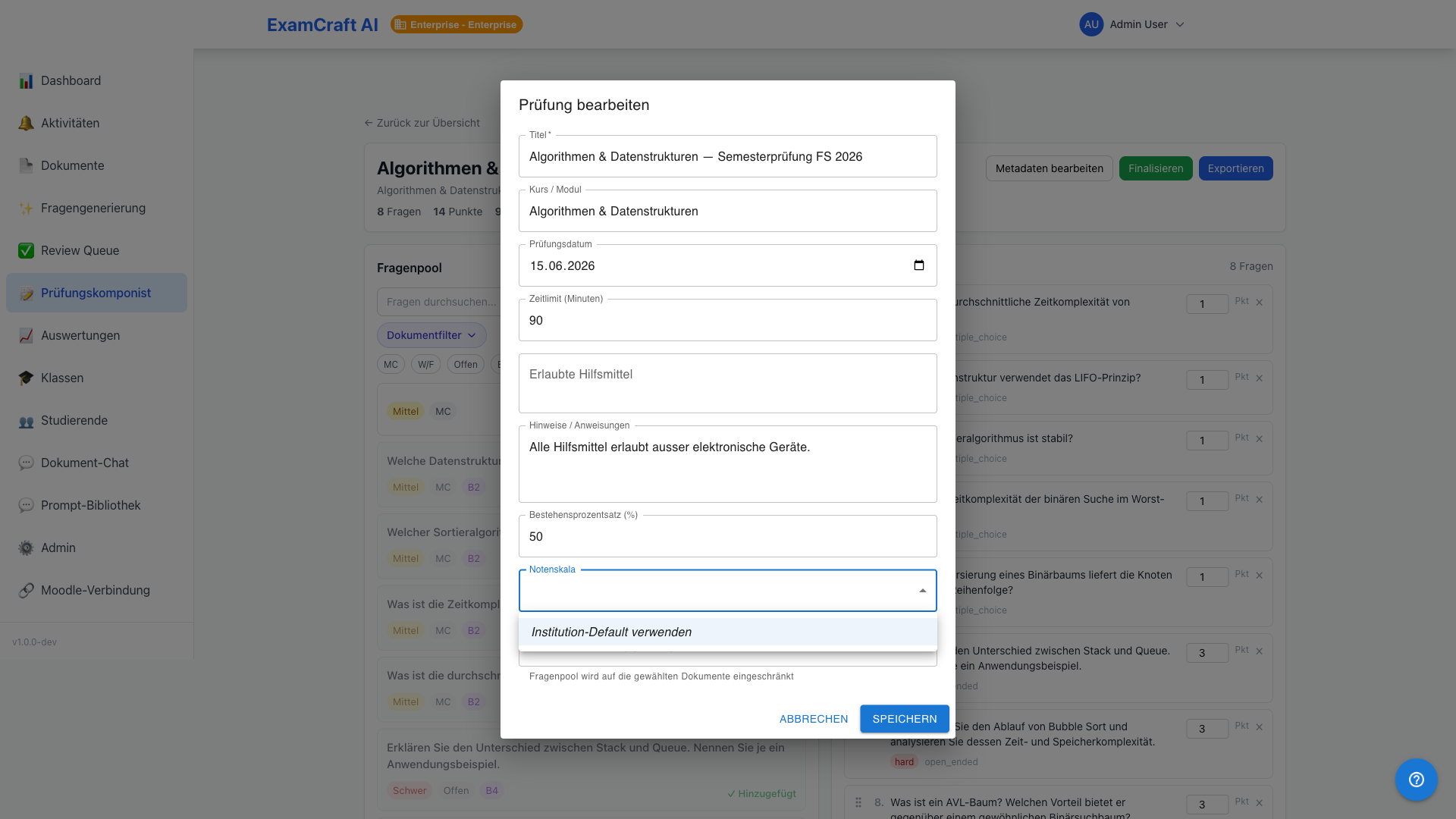
In the ExamMetadataBar at the top of the page, you will find the Grade Scale selector. Choose the desired grading scheme for this exam:
| Option | Description |
|---|---|
| Institution Default | Pre-configured scheme of your institution (default) |
| System Schemas | 8 pre-installed schemas (Swiss, German, ECTS, etc.) |
| Custom Schemas | Schemas defined by your institution (Enterprise) |
The grade scale affects the grade export. It can be changed at any time as long as no export has been created yet.
Grade Scale
The grade scale selection only affects export and reporting. Questions and exam composition are independent of the chosen grading scheme.
Step 3: Select Questions
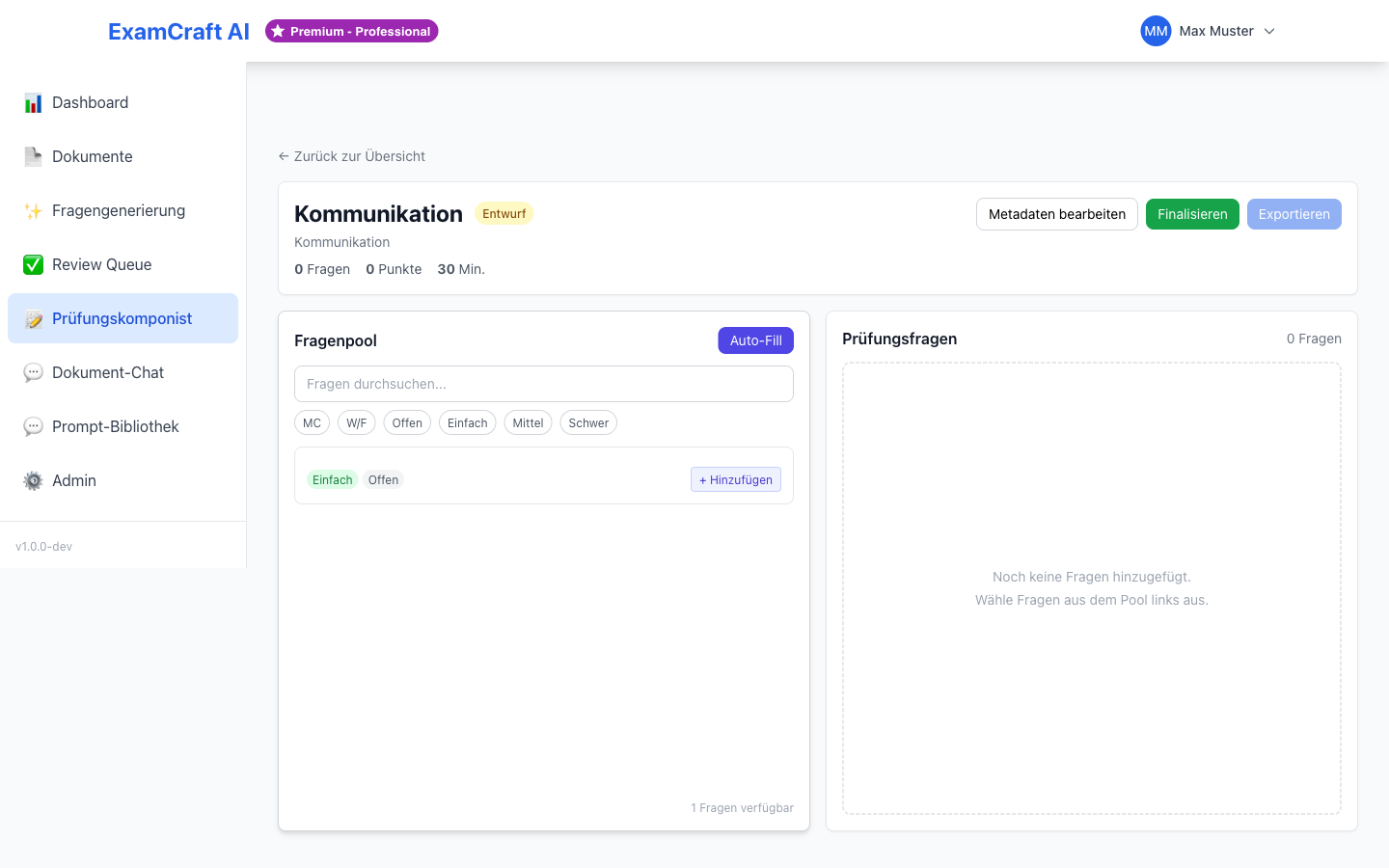
Select questions from the list of approved questions:
- Click + Add next to each desired question
- Use filters to find questions by question type, difficulty, or source document
- The total number of selected questions is displayed at the top
Create Balanced Exam
Aim for a balanced mix: different question types (Multiple Choice and open questions), varying difficulty levels, and if possible different topics. A balanced exam promotes fair assessment and authentic understanding of content.
The filter functions help you find the right questions efficiently. Use the filter options systematically: Start with the desired question type (e.g., only Multiple Choice for quick tests or a mix of MC and open questions for comprehensive exams). Then filter by difficulty to achieve a balanced distribution. Finally, you can selectively filter by source documents if you want to focus on specific chapters or topics.
Step 4: Set Question Order
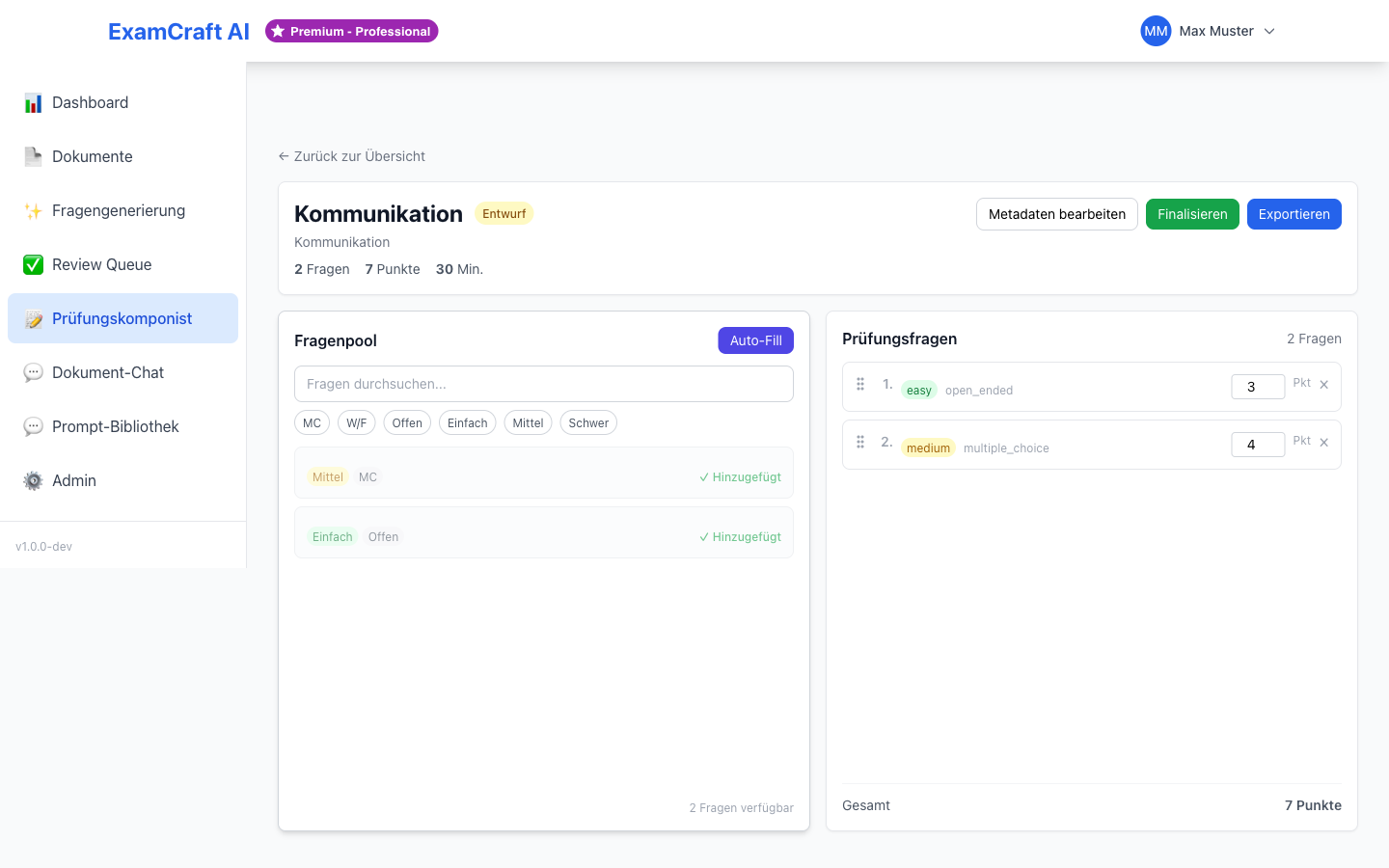
Arrange the selected questions in the desired order using drag and drop. The questions are automatically numbered. Consider whether you want to start with easier questions to introduce examinees to the topic, or deliberately place harder questions first. The order can also be thematically meaningful — group related questions to help examinees understand connections.
Step 5: Export Exam
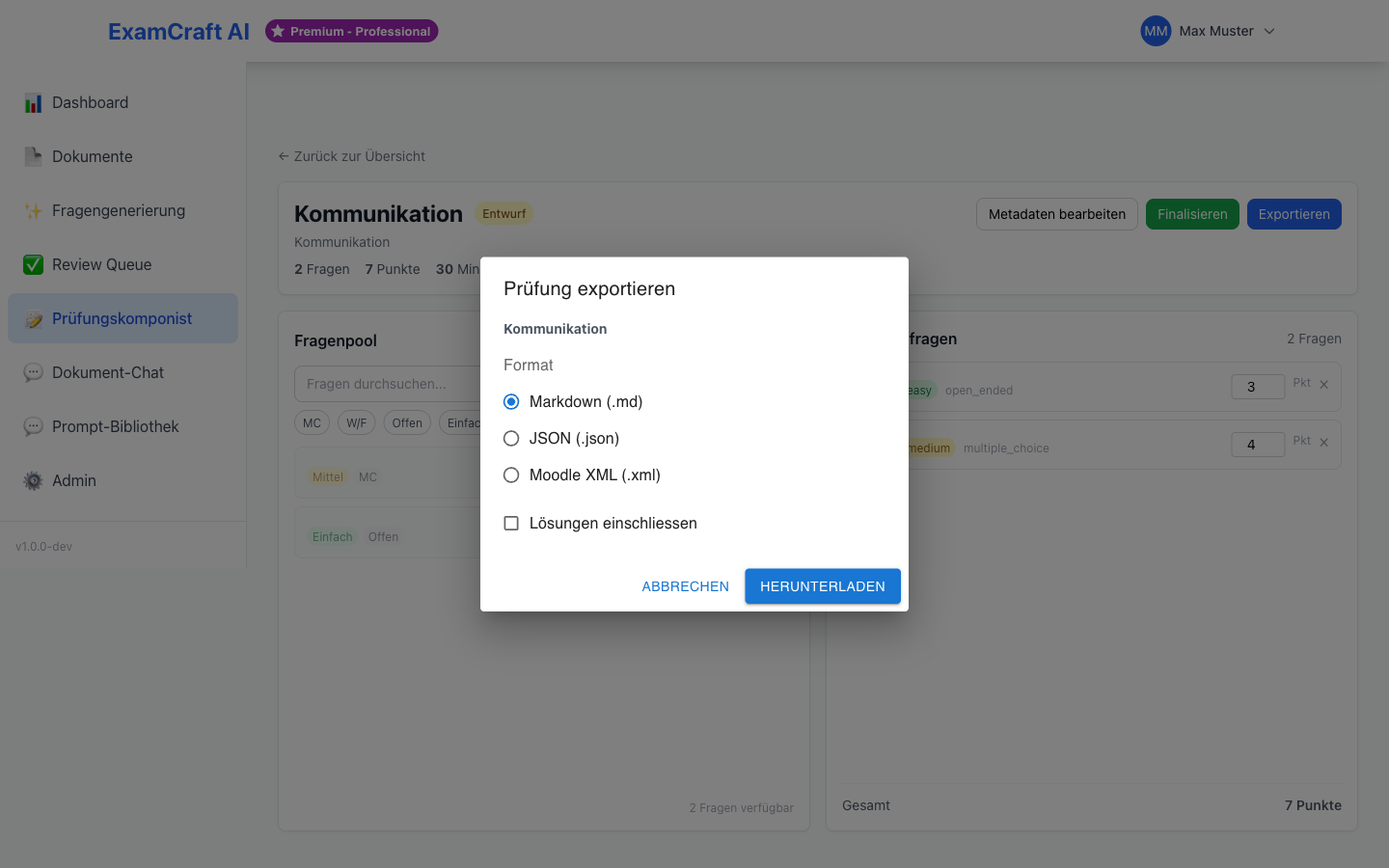
Click on Export and choose the desired format:
| Format | Description |
|---|---|
| Markdown (.md) | Text-based format, ideal for further editing or publishing. Optionally include answer solutions. |
| PDF (print-ready) | Fully laid-out exam sheet ready for printing. Optionally include answer solutions. |
| JSON (.json) | Machine-readable format for further processing, integration with external systems, or data analysis |
| Moodle XML (.xml) | Directly importable format for the Moodle learning management system |
Include Solutions
When exporting in Markdown or PDF format, you can optionally include the solutions. Enable the Include solutions checkbox in the export dialog — useful for creating answer sheets or internal review.
The Markdown format is suitable for further editing or integration into documentation systems. The JSON format is ideal for technical integration — for example, when importing exam data into a custom system or performing automated evaluations. The Moodle XML format enables direct import into Moodle without manual post-processing.
PDF Export for Paper-Based Exams
The PDF format produces a print-ready exam sheet — no post-processing in a word processor required:
- Header with title, course, date, time limit, allowed aids, total points and the pass mark (as a percentage and in points). Fields that are not set are omitted.
- Fill-in lines for name and class directly below the header.
- Tick boxes for single-choice, multiple-choice and true/false questions.
- Answer lines for open questions — three lines per point, but never fewer than three.
- Footer with the exam title and "Page X of Y" on every page.
The sheet is rendered in the exam's language, not in your display language — it is the candidates who receive it. Only the labels are translated (course, question, points, sample solution …); question texts and answers stay exactly as they were written. The same applies to the filename: depending on the exam language the answer key is called …_Lösungen.pdf, …_solutions.pdf, …_corrigé.pdf or …_soluzioni.pdf.
A question is kept together with its answer area as long as that area fits on one page: if the whole block no longer fits on the current page, it starts on the next one. Only an unusually large answer area — e.g. a high-point open-ended question — can itself run past a single page. With Include solutions enabled, each question is followed by a set-off box containing the sample solution and explanation — suitable as a marking guide.
Manage Existing Exams
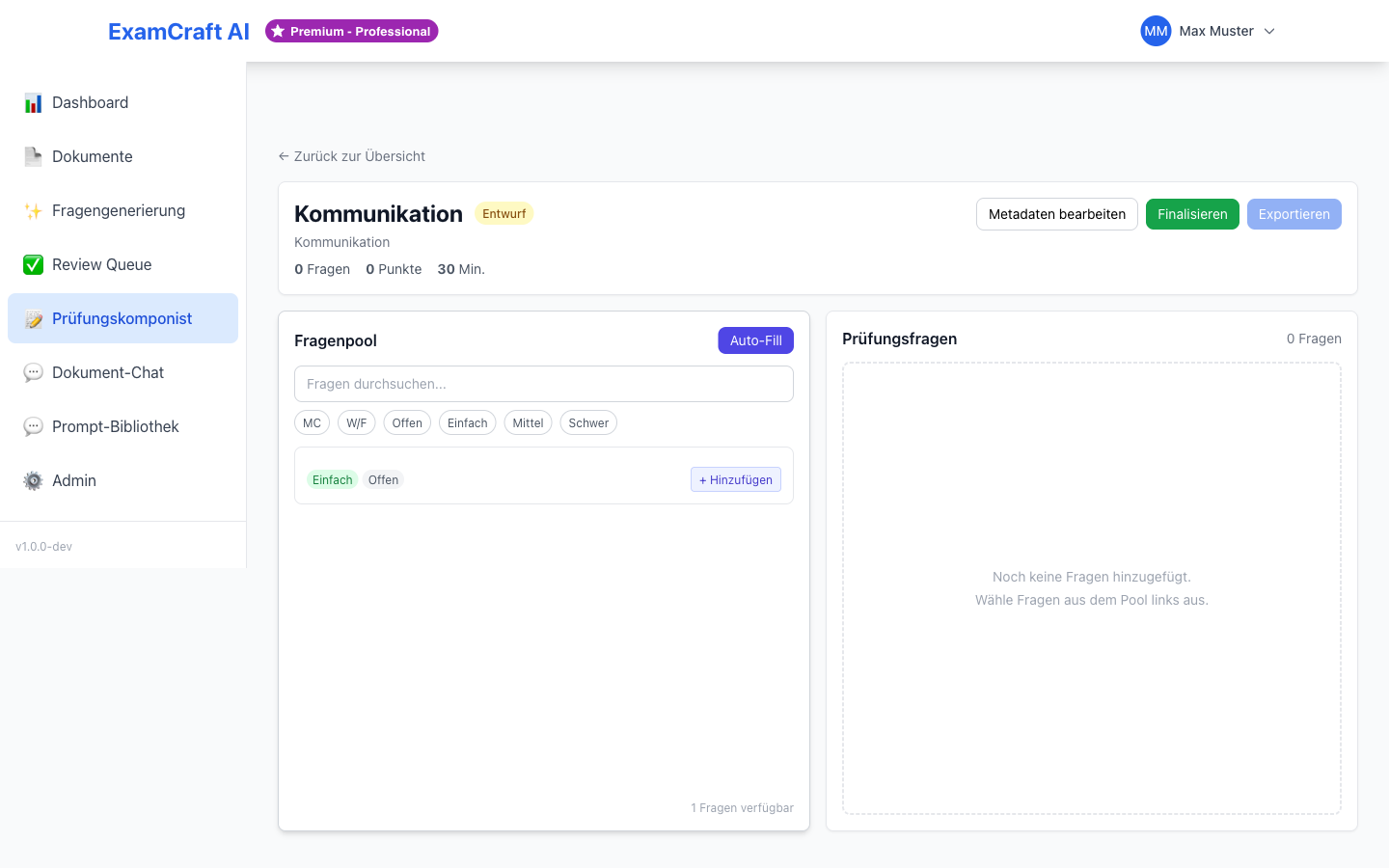
All created exams appear in the overview list. There you can:
- Open: Edit and supplement the exam
- Duplicate: Use as a basis for a new, similar exam
- Export: Export again in any format
- Delete: Remove the exam (not reversible)
The overview list shows important metadata such as creation date, number of questions, and last modified timestamp. Use the duplicate function to quickly create similar exams — for example, for different classes of the same year or for a makeup exam. This function saves time when composing similar exams and minimizes errors.
Deleted Exams
Deleting an exam only removes the exam composition, not the individual questions. The questions remain in the Review Queue and can be reused for future exams.