Classes and Students
Tier Note
Classes, student progress statistics, and cross-exam evaluations are Enterprise features. Students are, however, automatically created in all tiers upon CSV import and can be viewed at any time.
Use classes to group students and get a cross-exam overview of their performance over time. Routes: /auswertungen/klassen, /auswertungen/klassen/:classId, /auswertungen/studierende, /auswertungen/studierende/:studentId.
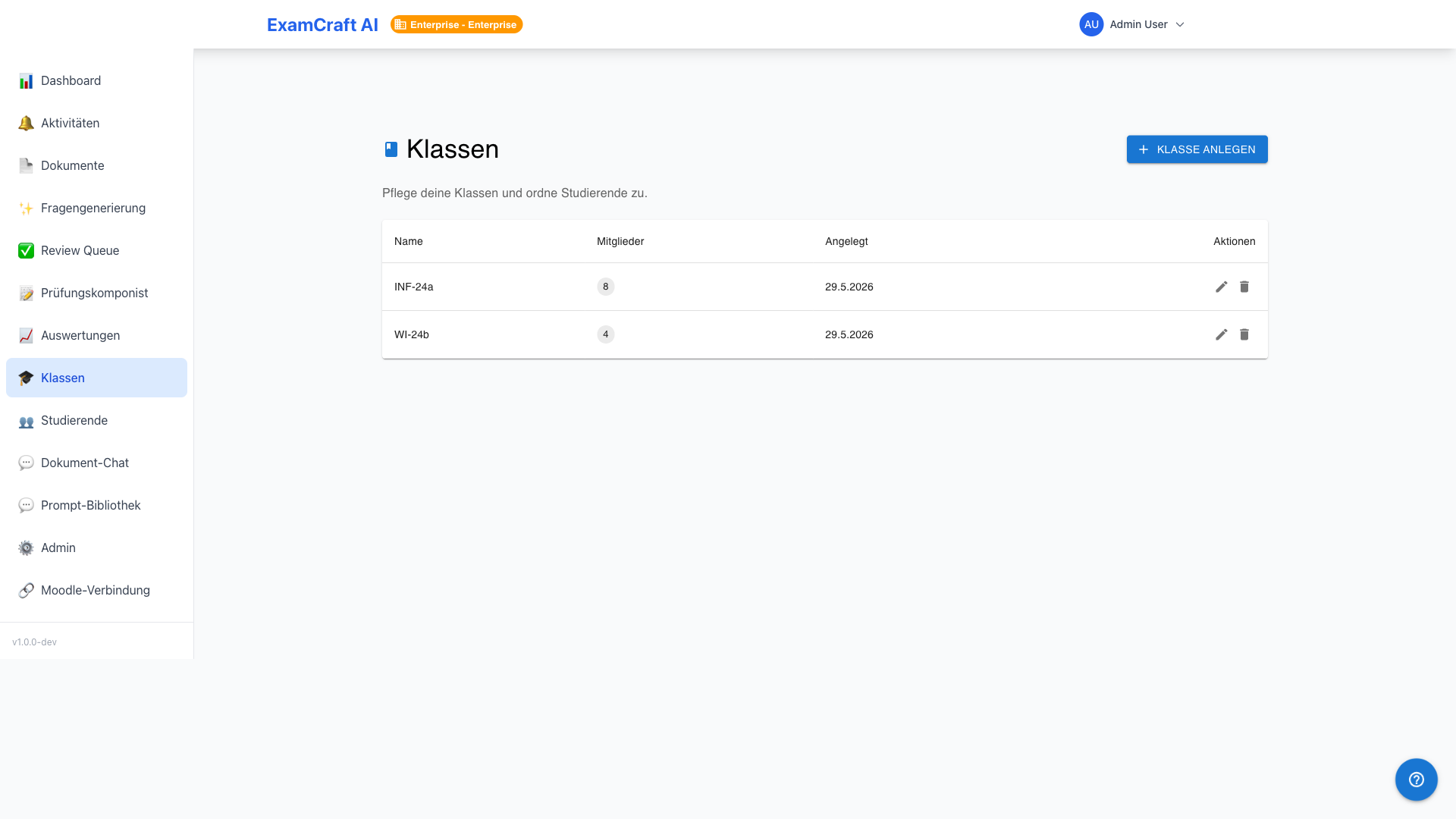
Create a Class
- Navigate to Evaluations → Classes
- Click Create Class
- Enter a name (e.g. "Computer Science B 2026")
- Optional: add a description and academic year
- Save — the class is now empty
Assign Students
Select the class in the list and click Assign Students. In the dialog you can add individual students by search, or import all participants from an existing exam.
Auto-Assignment on CSV Import
If the import CSV contains a class_hint column, students are automatically assigned to the matching class — without any manual step. Classes that do not yet exist are also created automatically.
Class Detail and History
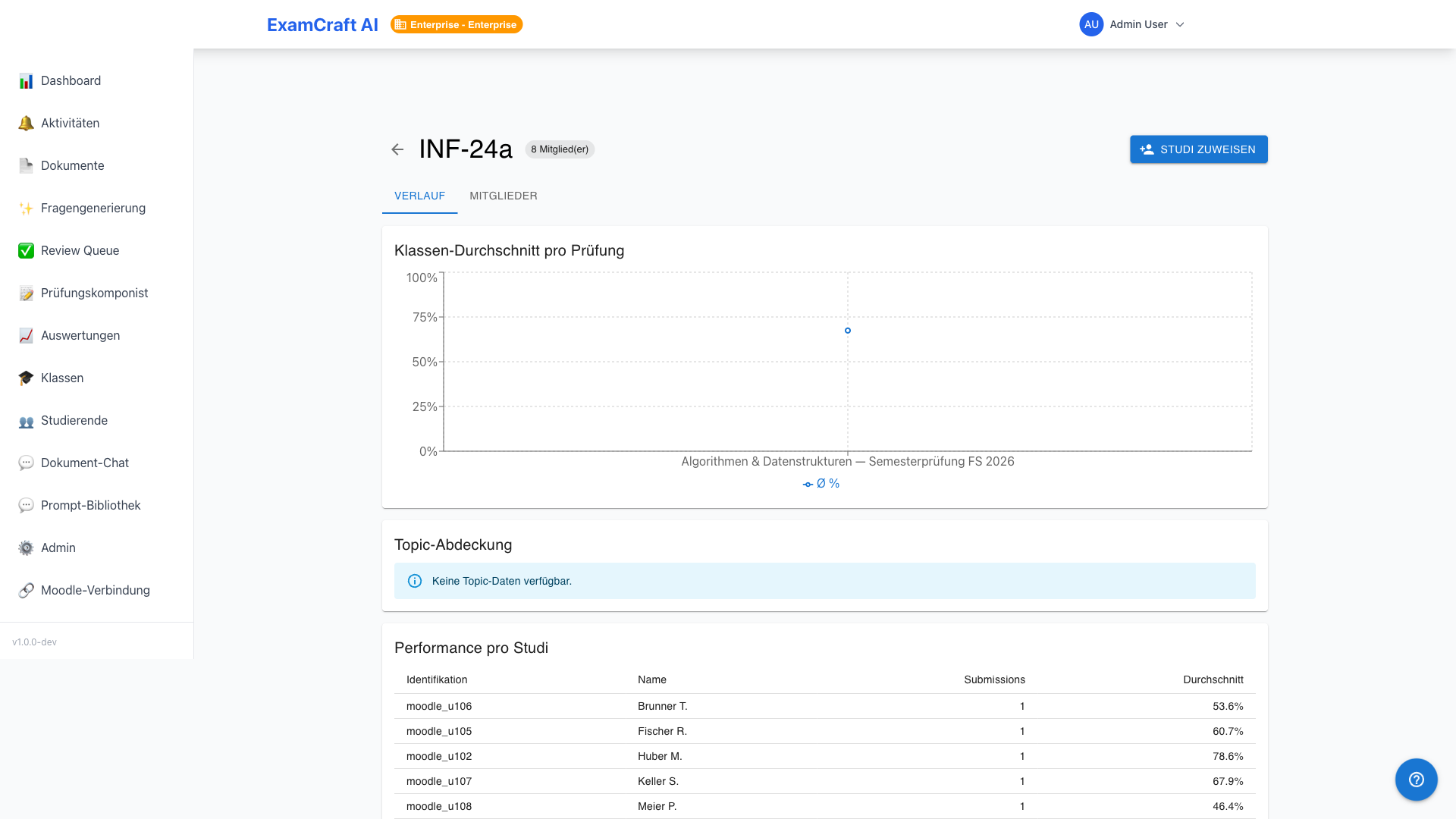
The class detail view shows the following for all exams taken so far:
| View | Content |
|---|---|
| History Chart | Average score per exam in chronological order |
| Exam List | All exams with date, average, and pass rate |
| Members List | All students with their most recent result |
Students Overview
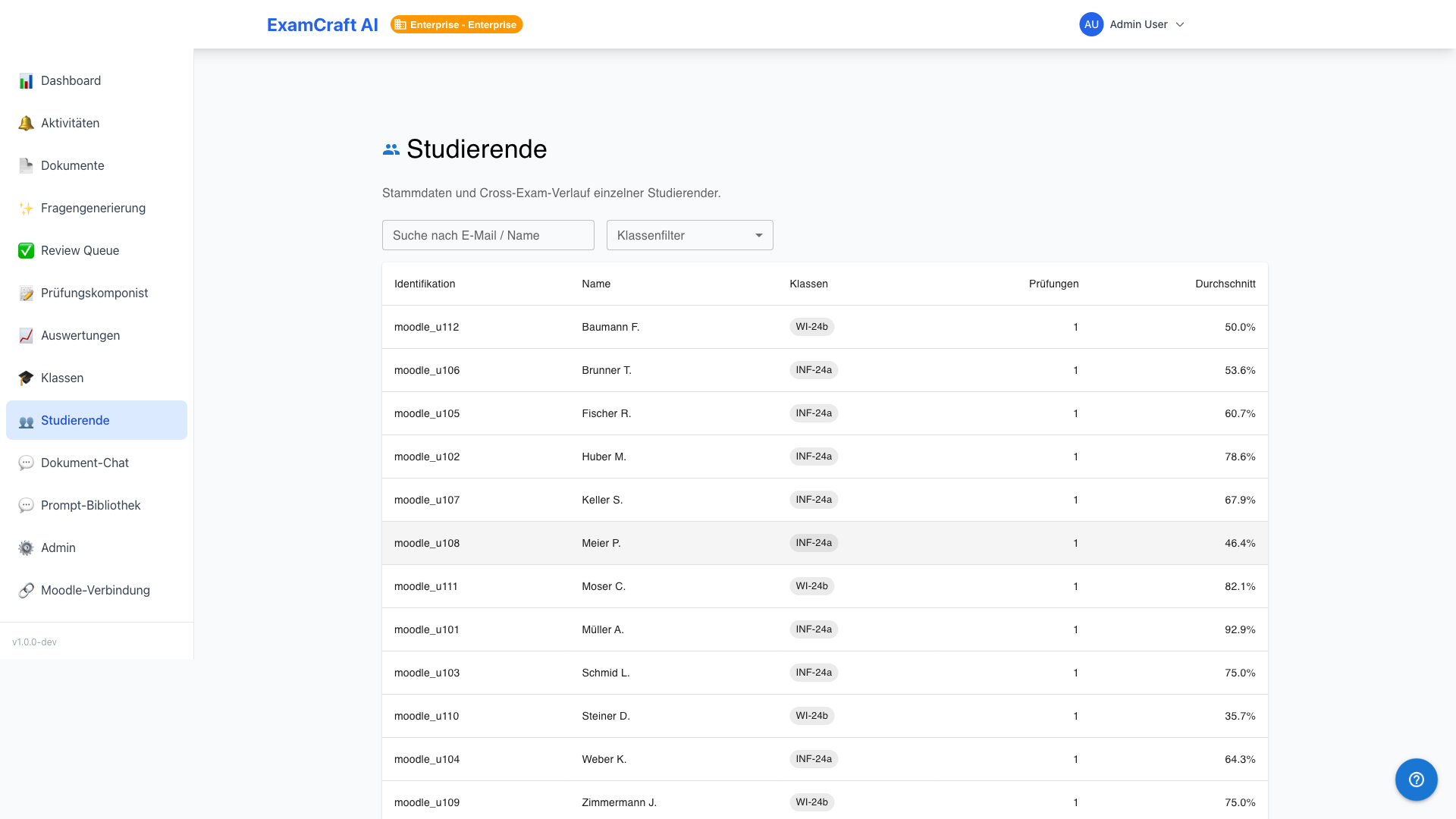
Navigate to Evaluations → Students for an institution-wide overview of all participants, including name, email, class(es), and last exam date.
Student Detail
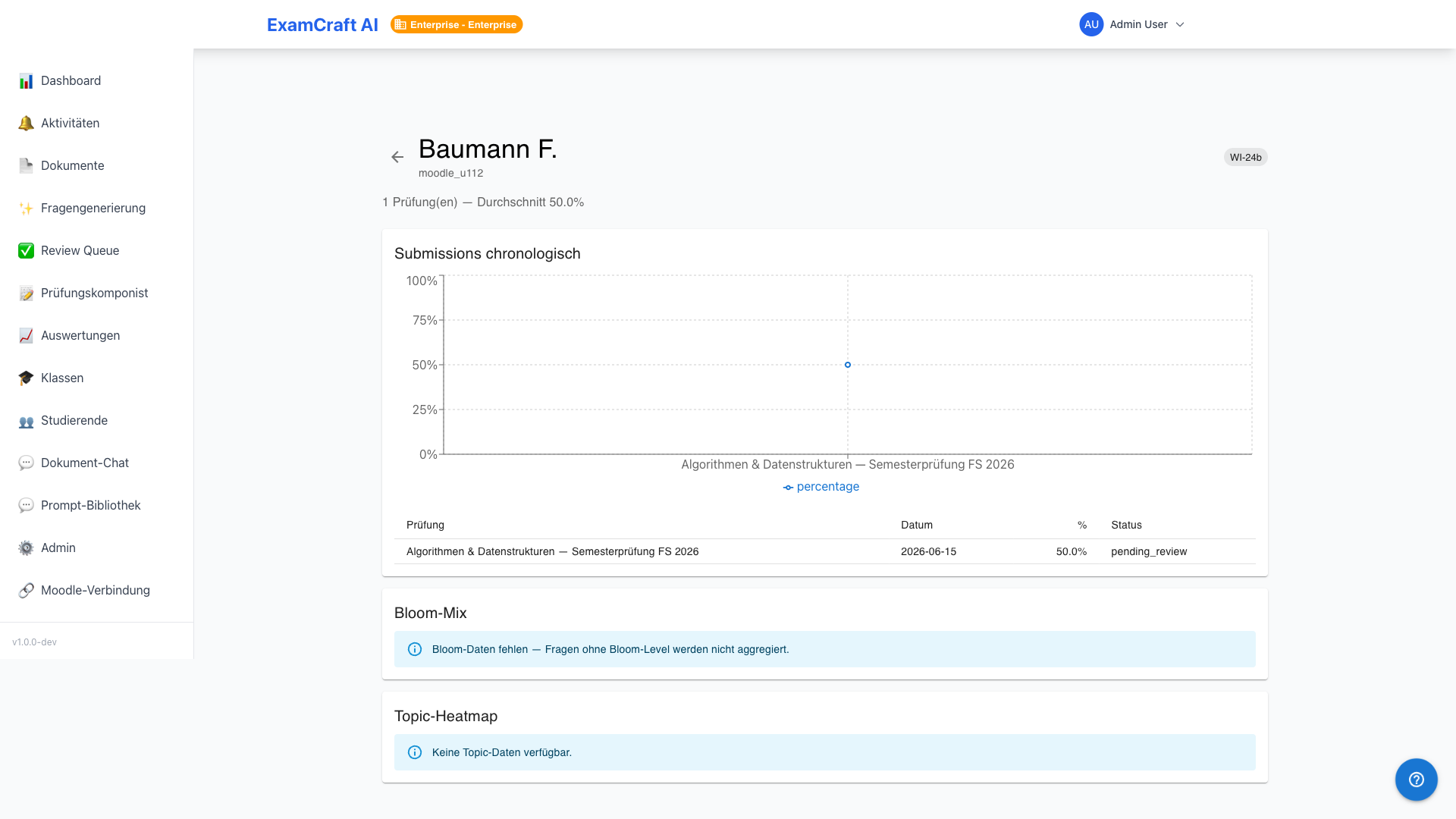
The detail view for a student shows:
- All Submissions in chronological order with achieved score and grade
- Progress Chart across all exams
- Bloom Taxonomy Mix of the questions attempted (if tags are assigned)
- Strengths/Weaknesses Heatmap per topic area (if tags are assigned)