Results & Grading
Prerequisite
To evaluate exam results, you need a completed exam in the Exam Composer. Results are exported as a CSV file from your learning platform (e.g. Moodle) and imported here.
The grading pipeline takes you from submission to grade list in five steps: Import → Automatic Scoring → Review of Open Questions → Statistics → Grade Export. Route: /auswertungen.
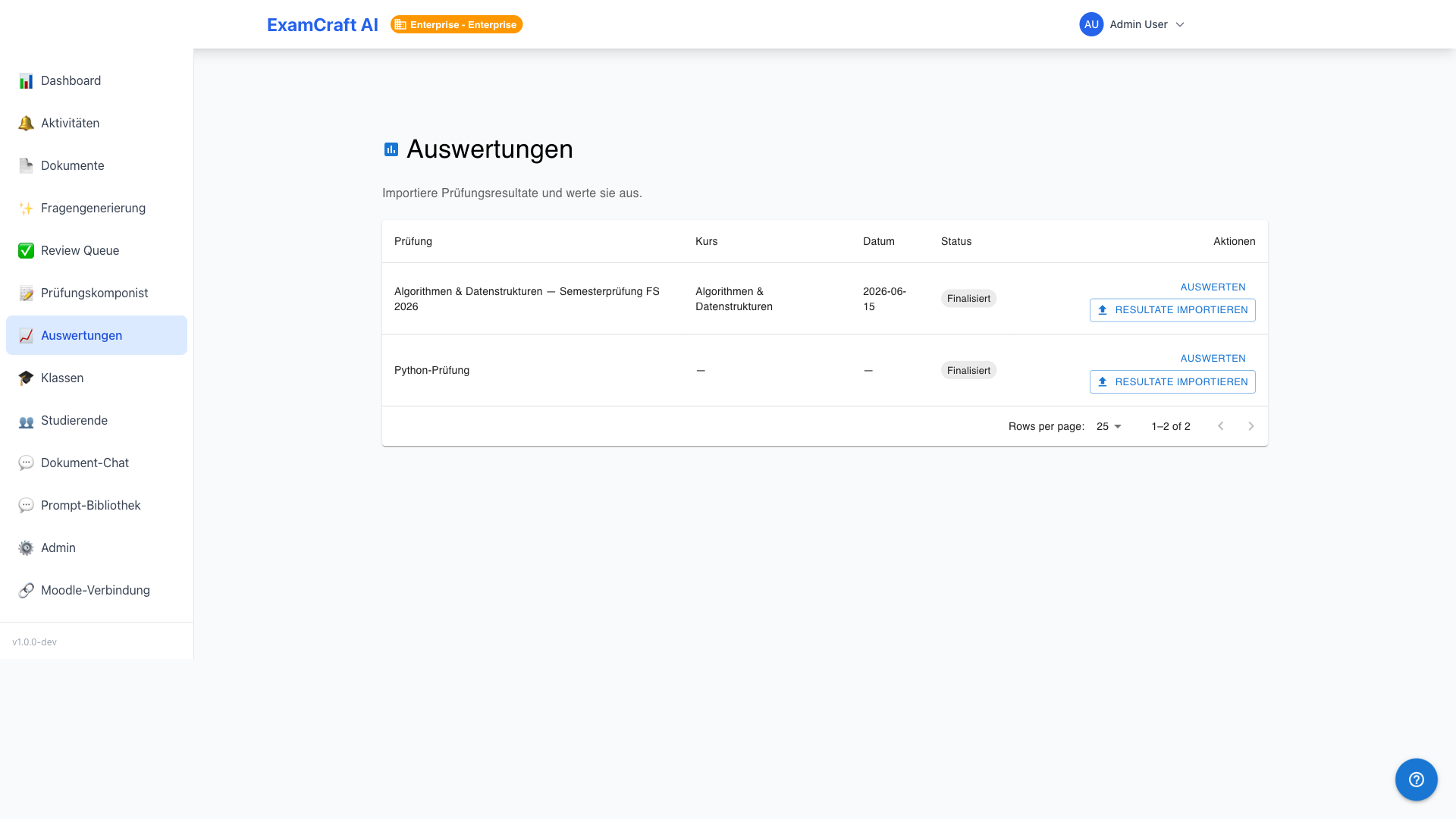
Starting the Grading Pipeline
Navigate to Results in the main navigation. The table lists all your exams. Click Import Results next to the desired exam.
Importing Exam Results
The import dialog guides you through the CSV import in two steps.
Step 1: Upload CSV File
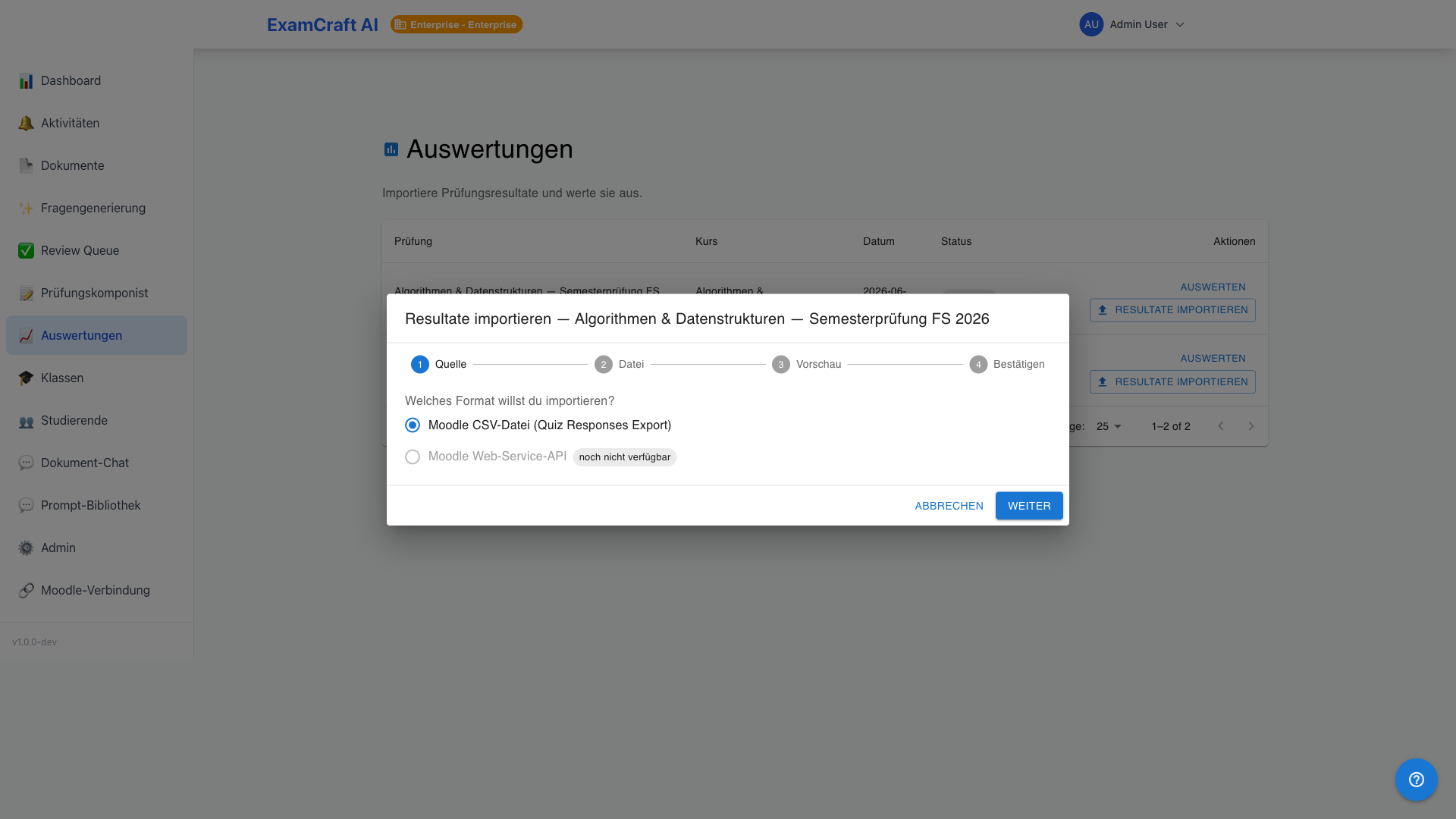
Select CSV File as the source and upload the export file from your learning platform. Moodle exports (DE and EN locale) are recognised automatically. For direct API import from Moodle, see the Moodle Integration section.
Step 2: Review Column Mapping
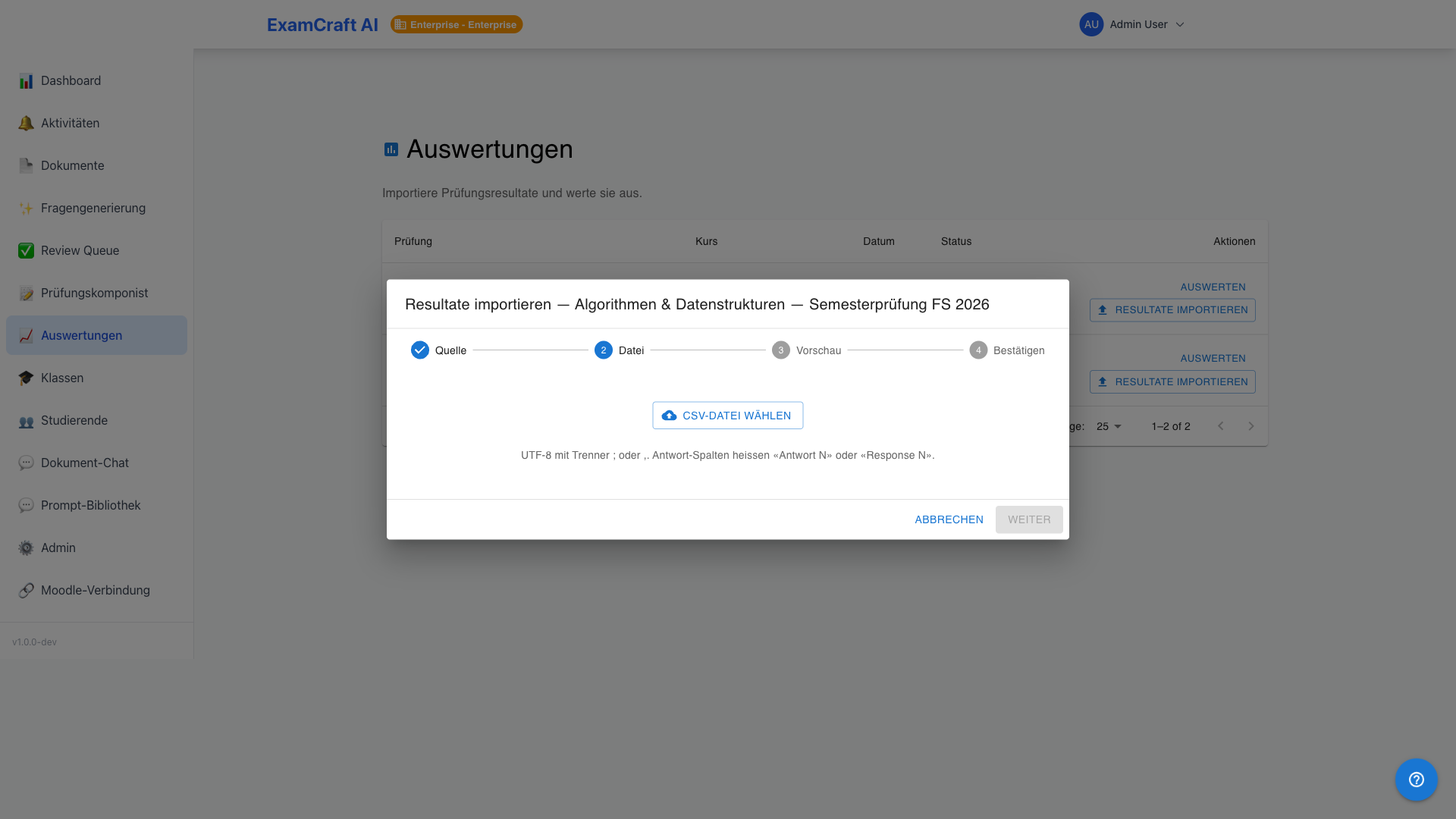
The system automatically maps the CSV columns to the questions in your exam. Review the mapping:
| Column | Meaning |
|---|---|
| Students | Name or email of the exam participant |
| Question Columns | Answer per question — assigned by Moodle question ID or column position |
| Total Points | Calculated from individual scores, not taken from the CSV column |
Warnings appear if a question cannot be mapped. You can still complete the import — unmapped questions are skipped.
Idempotent Import
A second import of the same CSV file does not create duplicates. Already imported submissions are updated; missing ones are created anew.
Click Import to complete the process.
Submissions Overview
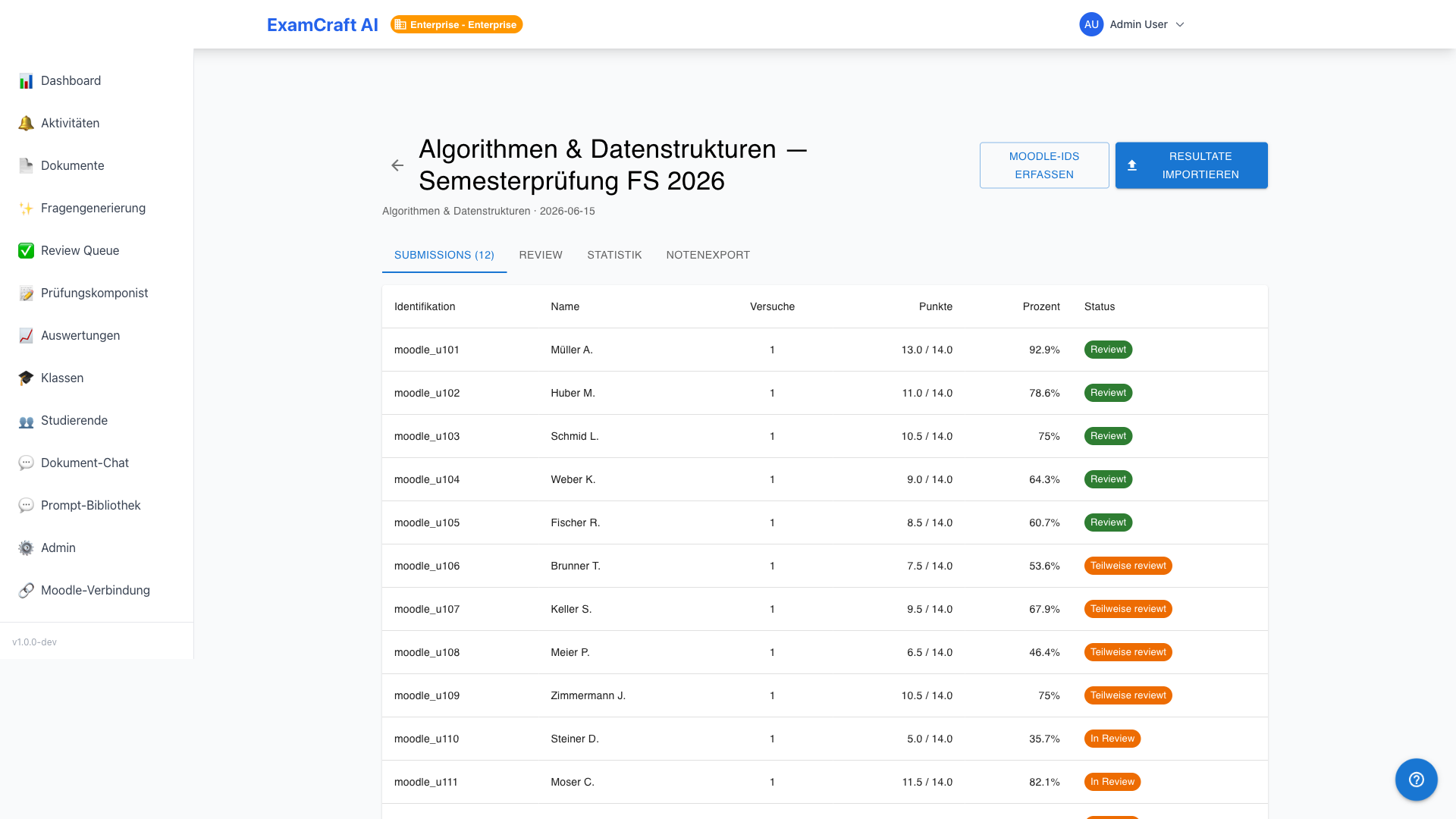
After the import, all submissions appear in the Submissions tab. The list shows:
| Column | Description |
|---|---|
| Students | Name and email |
| Points | Points achieved / maximum possible points |
| Percent | Percentage score |
| Status | Grading status (see below) |
Status Badges
| Badge | Meaning |
|---|---|
pending_review |
Open questions are still awaiting review |
partially_reviewed |
Some open questions have been reviewed, others have not |
fully_reviewed |
All open questions graded — grade export is possible |
Submission Detail
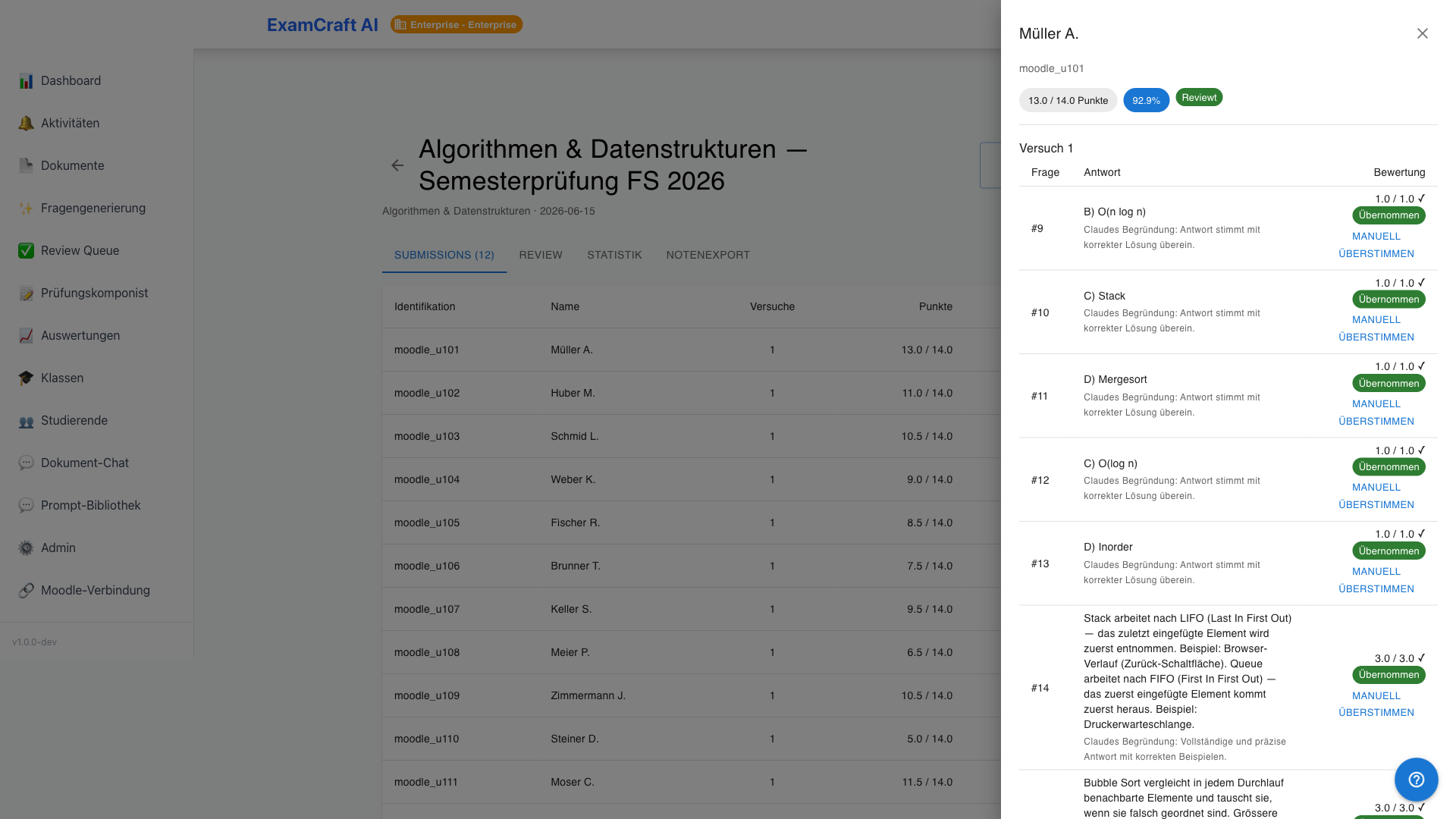
Click on a row to open the detail drawer. It shows all answers with question text, answer type (MC, True/False, Open), submitted answer, grading status, and points achieved. For open questions: AI suggestion with confidence badge.