Dashboard
The Dashboard is your home page in ExamCraft AI after login. It provides a quick overview of your activities and direct access to all the main features of the platform.
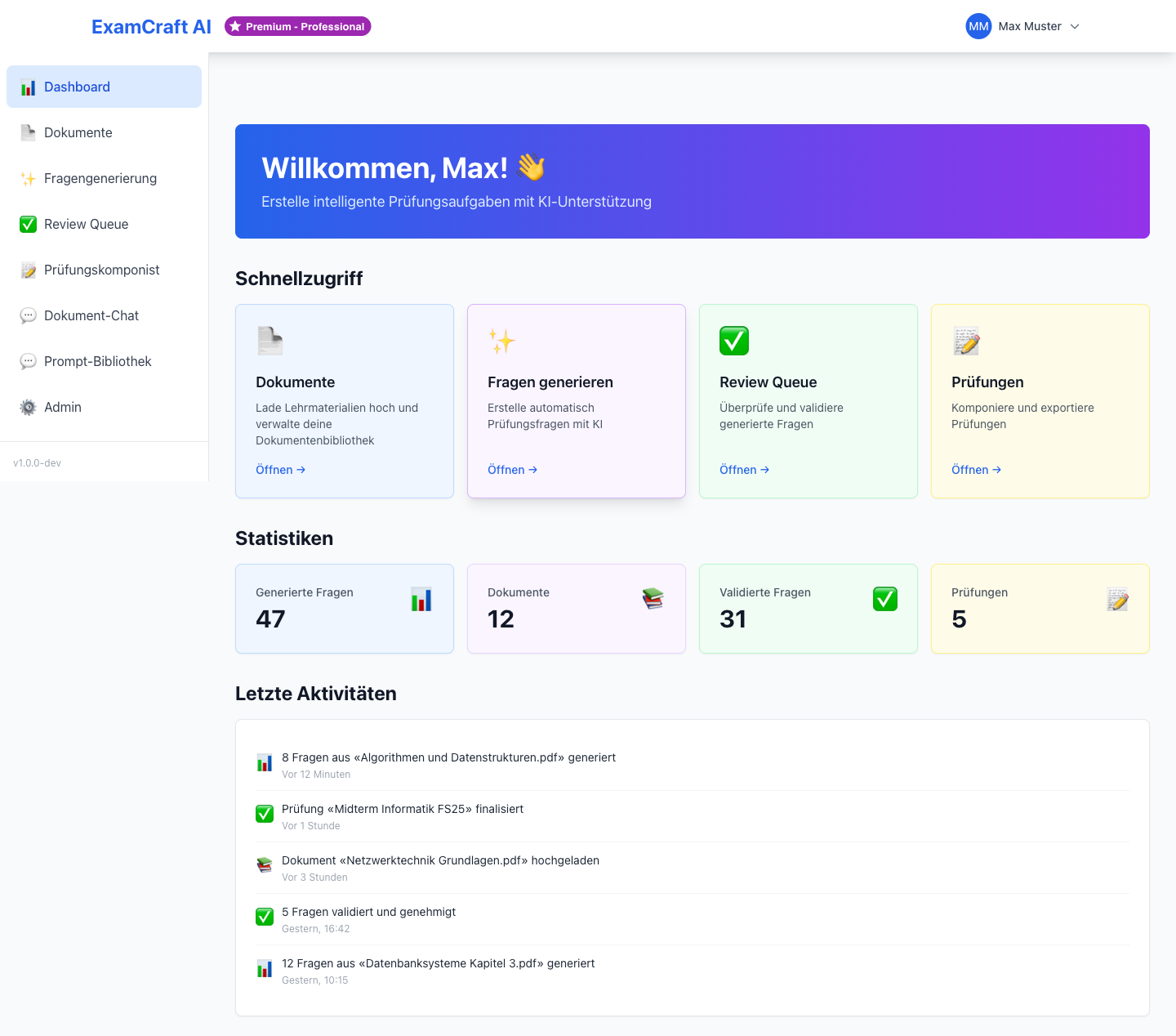
Statistics
In the top area of the Dashboard, you see four key metrics at a glance:
| Statistic | Description |
|---|---|
| Generated Questions | Total number of AI-generated questions so far |
| Documents | Number of successfully uploaded and processed documents |
| Validated Questions | Number of questions approved in the Review Queue |
| Exams | Number of exams created in the Exam Composer |
These numbers update in real-time and help you keep track of your work.

Quick Access Tiles
The quick access tiles provide direct access to the most important areas of the platform:
| Tile | Destination | Description |
|---|---|---|
| Upload Documents | Documents | Upload and process new learning materials |
| Create Exam | Create Exam | Generate AI questions without a source document |
| Create RAG Exam | RAG Exam | Generate questions from your documents |
| Review Questions | Review Queue | Review and approve generated questions |
| Compose Exam | Exam Composer | Compile approved questions into exams |
| Prompt Library | Prompt Library | Manage reusable AI prompts |
Click on a tile to go directly to the desired area.
Recent Activities
The "Recent Activities" section shows you the most recently generated questions and recently uploaded documents. This allows you to quickly resume interrupted tasks.
- Recently generated questions: Click on a question to open it in the Review Queue
- Recently uploaded documents: Click on a document to open it in the document library
Privacy
The dashboard widget shows exclusively your own activities. Click on Show all activities → to optionally display institution-wide events on the Activities page.
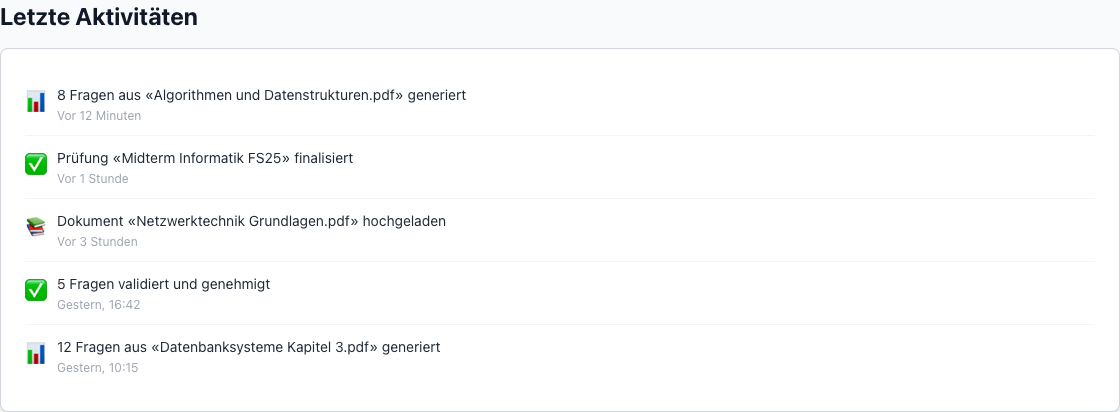
Click on Show all activities → at the bottom of the widget to navigate to the full Activities page.
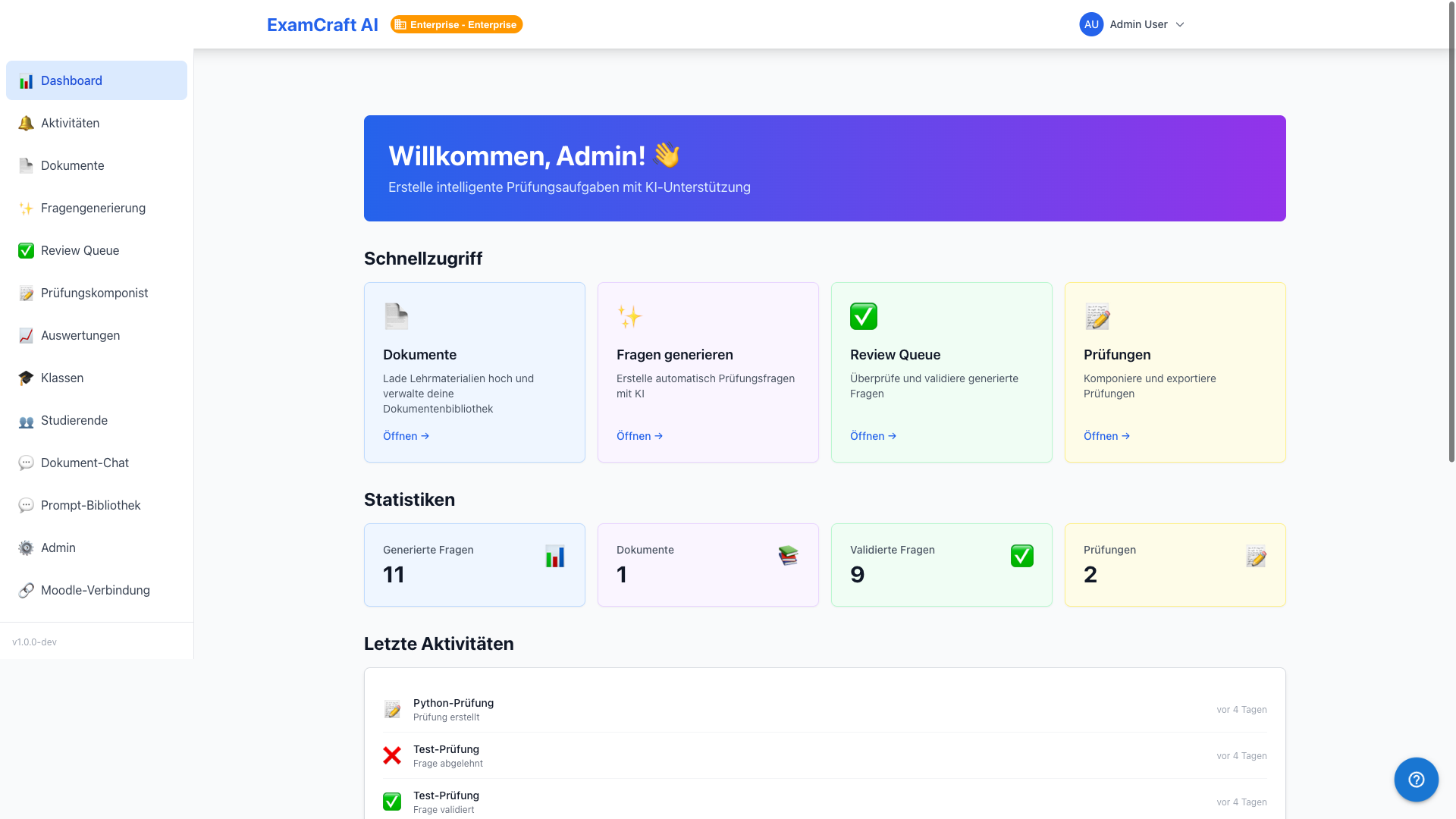
Subscription Badge
In the top left of your Dashboard, you see a colored badge with your current subscription, such as "Free", "Starter", or "Professional". This badge shows you at all times which features are available to you.
Click on the badge to navigate to the Subscription page and view or upgrade your plan.
Tip: Dashboard as Starting Point
The Dashboard gives you a quick overview. For efficient workflow, we recommend: First upload documents, then generate questions, process the Review Queue, and finally compose the exam in the Exam Composer.