Upload and Manage Documents
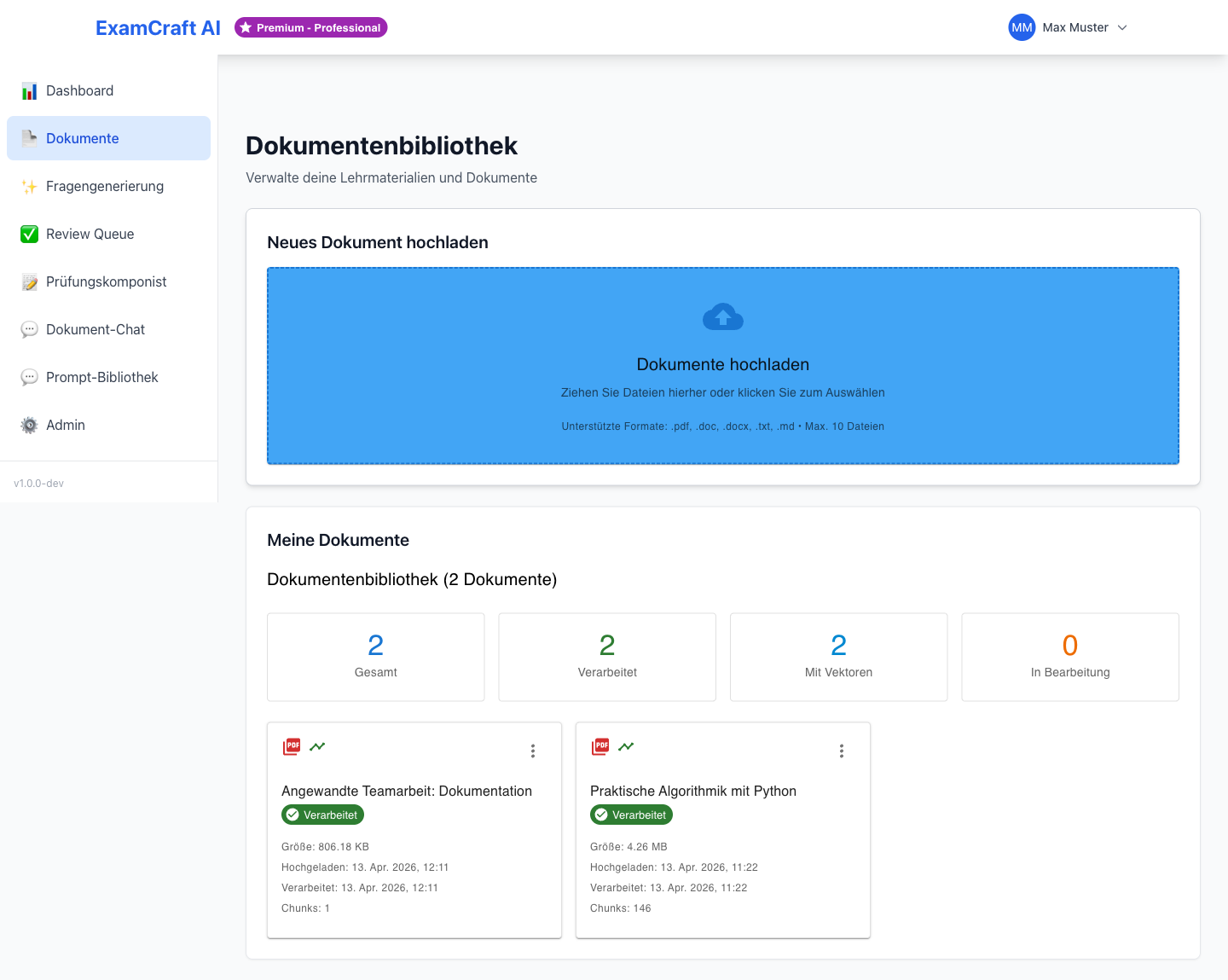
Supported File Formats
| Format | Extension | Max. Size | Special Features |
|---|---|---|---|
.pdf |
50 MB | Tables, formulas, images | |
| Word | .doc, .docx |
25 MB | Formatting preserved |
| Markdown | .md |
10 MB | Code blocks, LaTeX |
| Text | .txt |
5 MB | Plain text |
Upload Documents
1. Open "Upload Documents" Tab
Click the Upload Documents tab in the navigation.
2. Select Files
You have two options:
- Drag & Drop: Drag files into the upload area
- File Browser: Click Select Files
3. Monitor Upload Progress
During upload you will see:
- Filename and size
- Progress bar (0–100%)
- Status: "Processing..." then "Processed"
4. Wait for Processing
After upload, documents are automatically:
- Text extracted
- Split into semantic chunks
- Indexed in the vector database
- Prepared for RAG search
| Document Type | Typical Processing Time |
|---|---|
| PDF (10 pages) | ~30 seconds |
| Word (20 pages) | ~45 seconds |
| Markdown (5 pages) | ~15 seconds |
Best Practices for Uploads
- Use clear filenames (e.g.,
Algorithms_Chapter_3.pdf) - Structured documents with headings provide better results
- Upload related documents in batch
Avoid
- Scanned PDFs without OCR
- Password-protected files
- Files larger than 50 MB
- Duplicates
Document Library
The document library displays all uploaded documents in a clear list with filename, upload date, file size, page count, and processing status.
Search Documents
Enter search terms in the search field. Results are filtered in real-time (filename, tags, content).
Filters:
- All formats
- PDF only
- Word only
- Markdown only
Select Documents for Exams
- Check the boxes next to the desired documents
- Click Create Exam from Selection
- You will be redirected to the RAG Exam Creator
Delete Documents
- Click the delete icon
- Confirm the security prompt
- Document is removed from library and vector database
Attention
Deleted documents cannot be recovered.
Document Preview
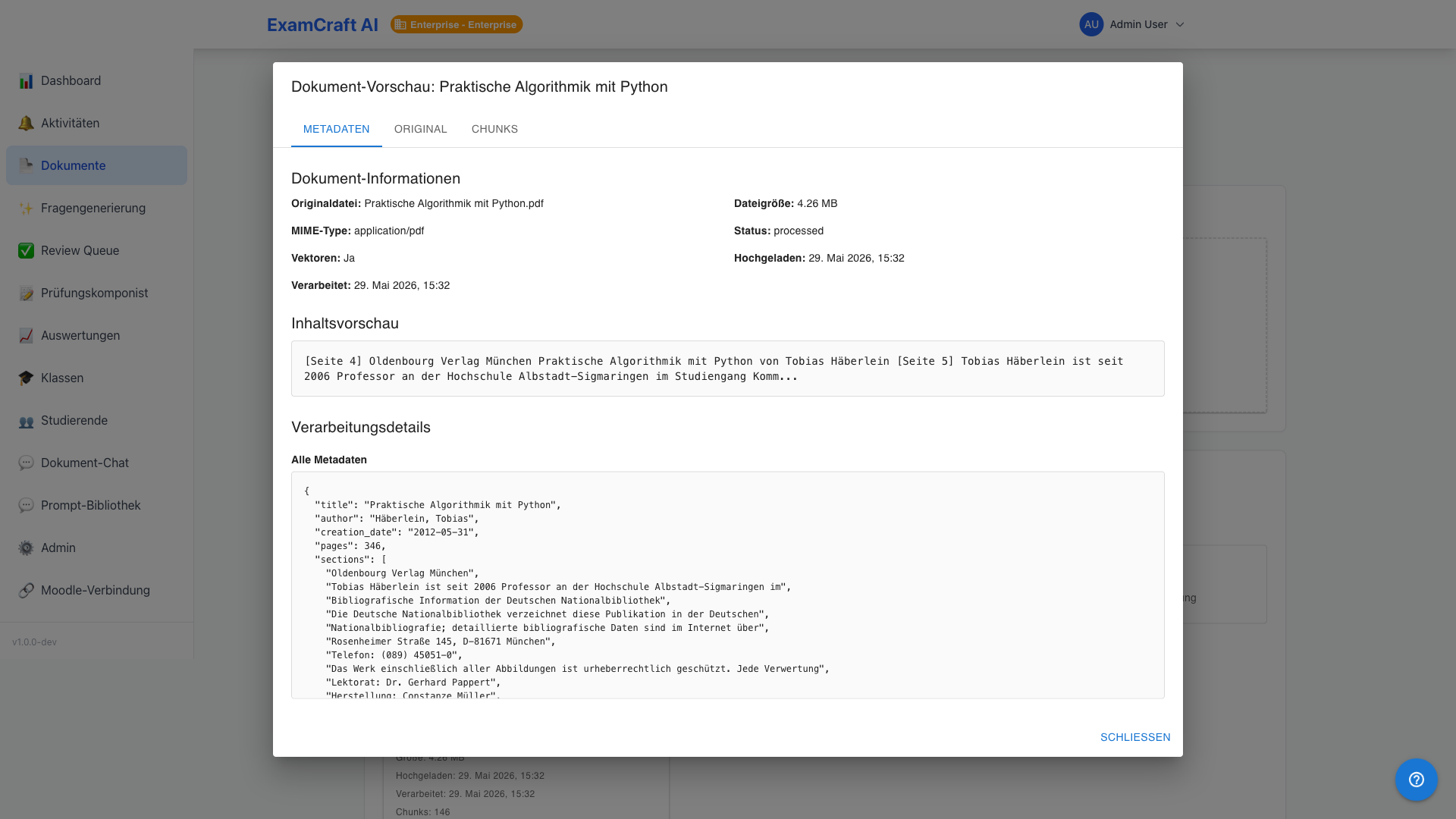
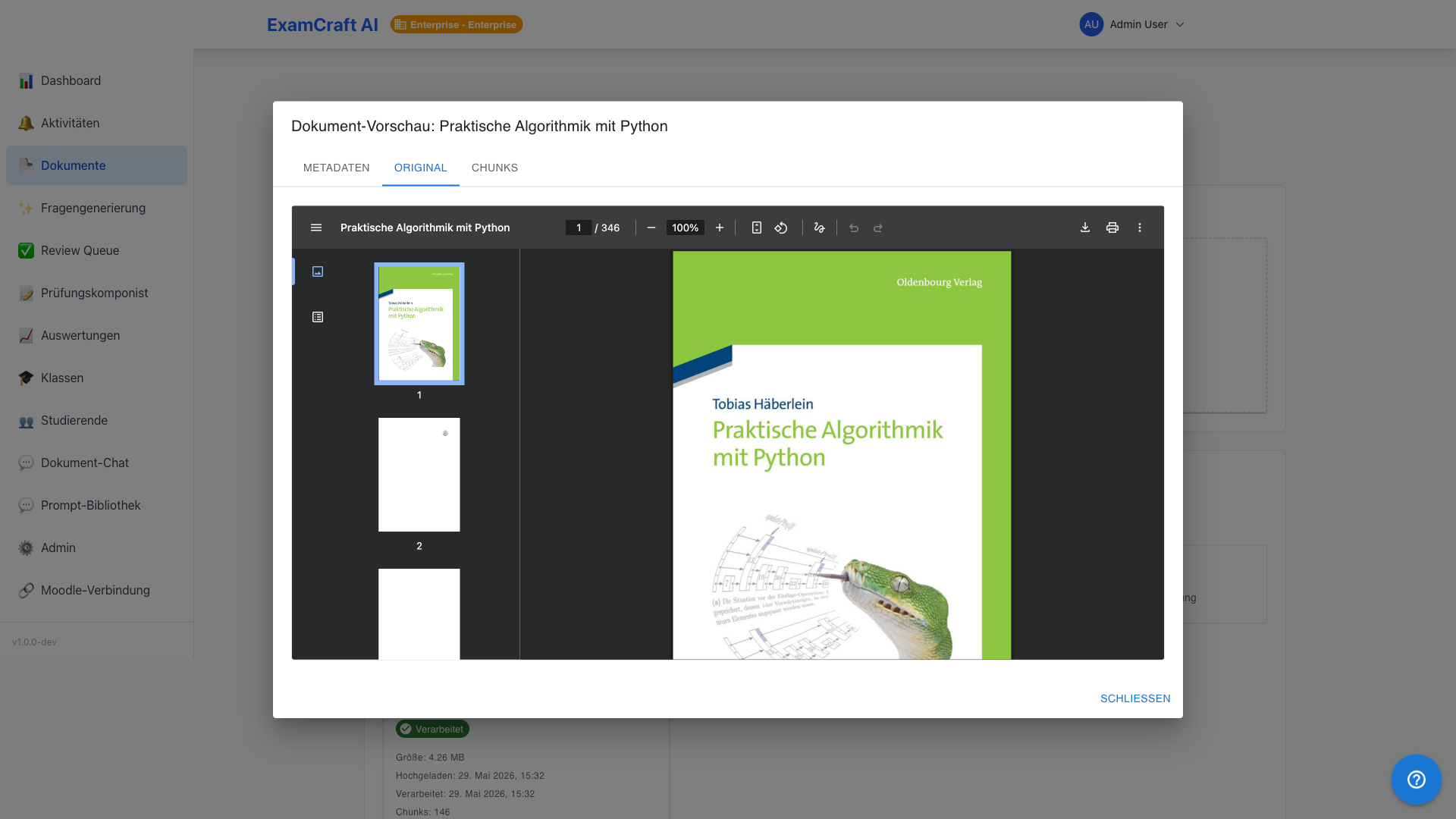
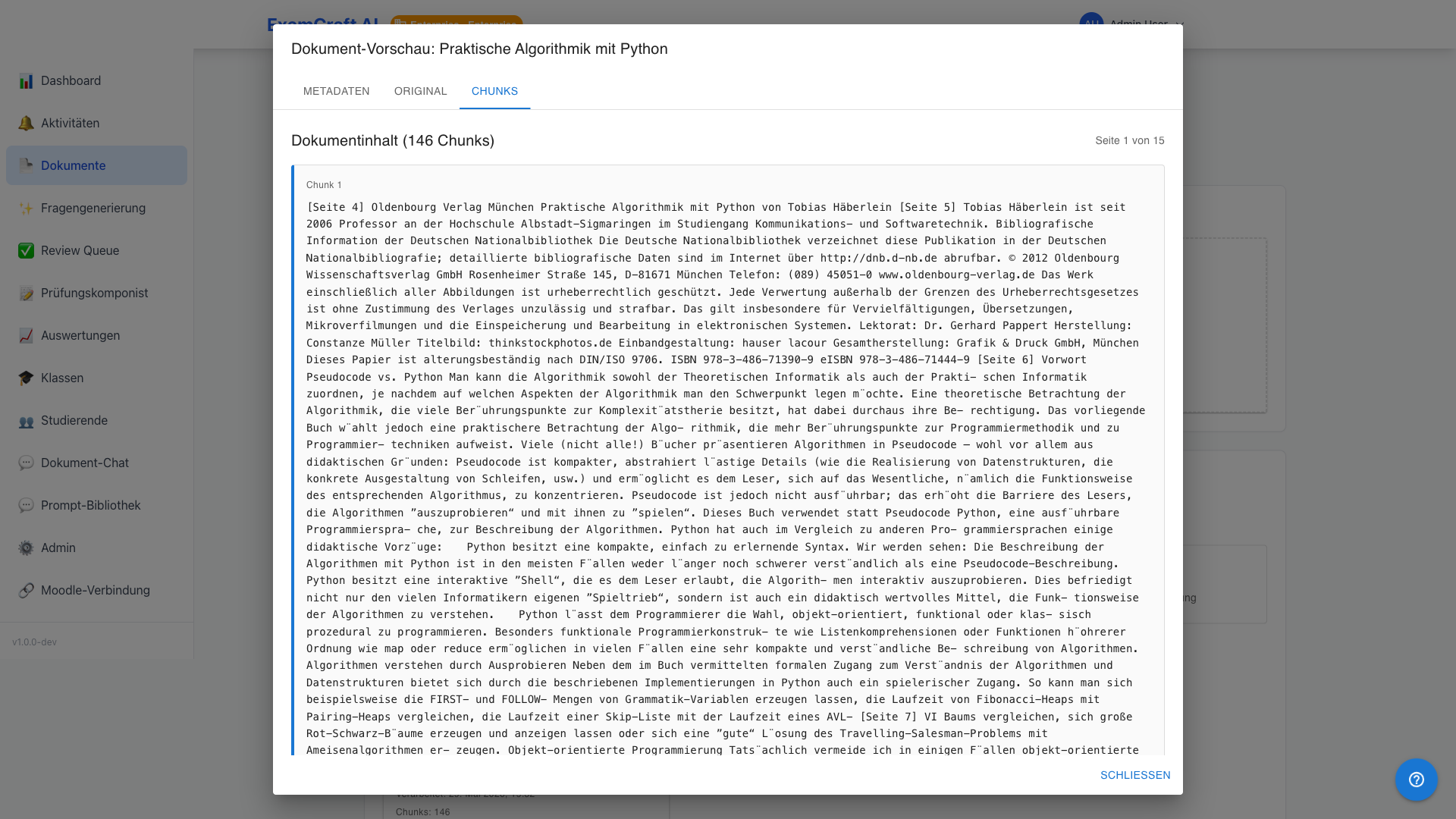
Click on the filename of a document in the library to open the preview dialog. It consists of three tabs:
| Tab | Content |
|---|---|
| Metadata | Filename, upload date, file size, processing status, tags |
| Original (default) | The original document depending on type: PDF rendered directly in the browser, Markdown and chat exports as formatted text, plain text in monospace |
| Chunks | Internal processing chunks for technical diagnostics |
Error States
| Error | Cause | Resolution |
|---|---|---|
| Network Error | Connection interrupted | Reload the page |
| 403 Forbidden | No access to this document | Contact administrator |
| 404 Not Found | Document has been deleted | Remove from library |
| 429 Too Many Requests | Rate limit reached | Wait briefly and try again |
| 500 Server Error | Internal error | Contact administrator |
Next Steps
After uploading, you can start generating questions directly:
- Generate Questions from Documents (RAG): Use your documents as a knowledge source for AI-powered exam questions.
- Review Questions (Review Queue): Check and approve generated questions before they are used in exams.
- Document Chat: Ask direct questions to your documents (Premium feature).