Moodle Integration
Prerequisite for API Import
For the API import, an administrator must first set up a Moodle connection at /admin/integrations/moodle. The CSV import works without this prerequisite on all tiers. Details: Set up Moodle (Admin Guide).
Exam results can be imported in two ways: as a CSV file (all tiers) or directly via the Moodle Web Service API (Professional and Enterprise). The API import retrieves data with a single click — no manual export from Moodle required.
CSV Import vs. API Import
| Property | CSV Import | API Import |
|---|---|---|
| Availability | All tiers | Professional / Enterprise |
| Setup | None | Admin sets up connection once |
| Data freshness | Snapshot at export time | Current state from Moodle |
| Question mapping | Manual column mapping | Automatic via Moodle question IDs |
Performing an API Import
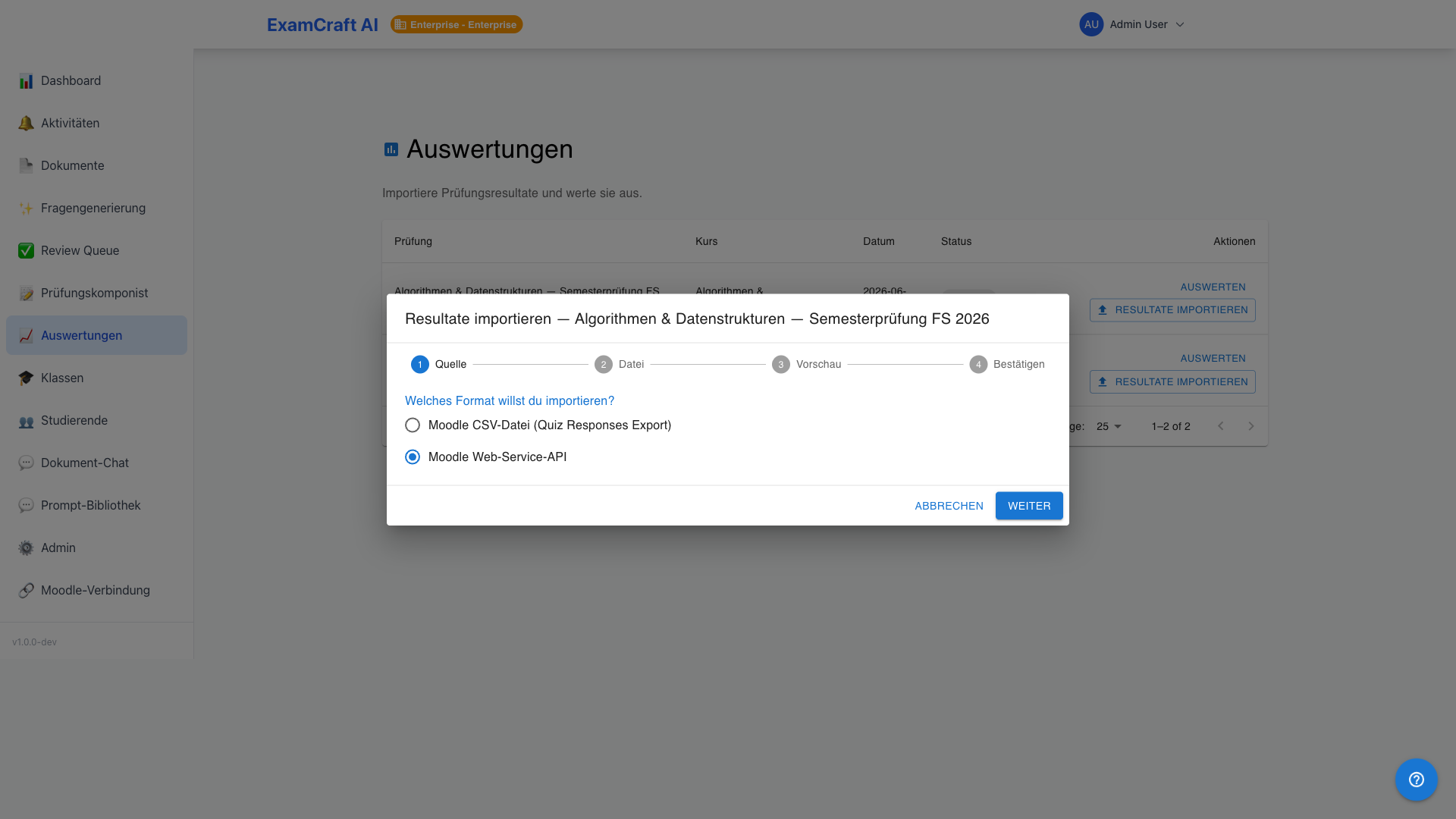
- Open Import Results for the desired exam
- Select Moodle API as the source
- Choose the Moodle course and quiz from the list
- Click Fetch Results
The mapping between Moodle questions and ExamCraft questions is performed automatically using stored Moodle question IDs. If no IDs are stored, the manual column-mapping dialog opens.
Storing Moodle Question IDs (Question-ID Round-Trip)
To enable automatic mapping during API imports, Moodle question IDs must be recorded in ExamCraft once:
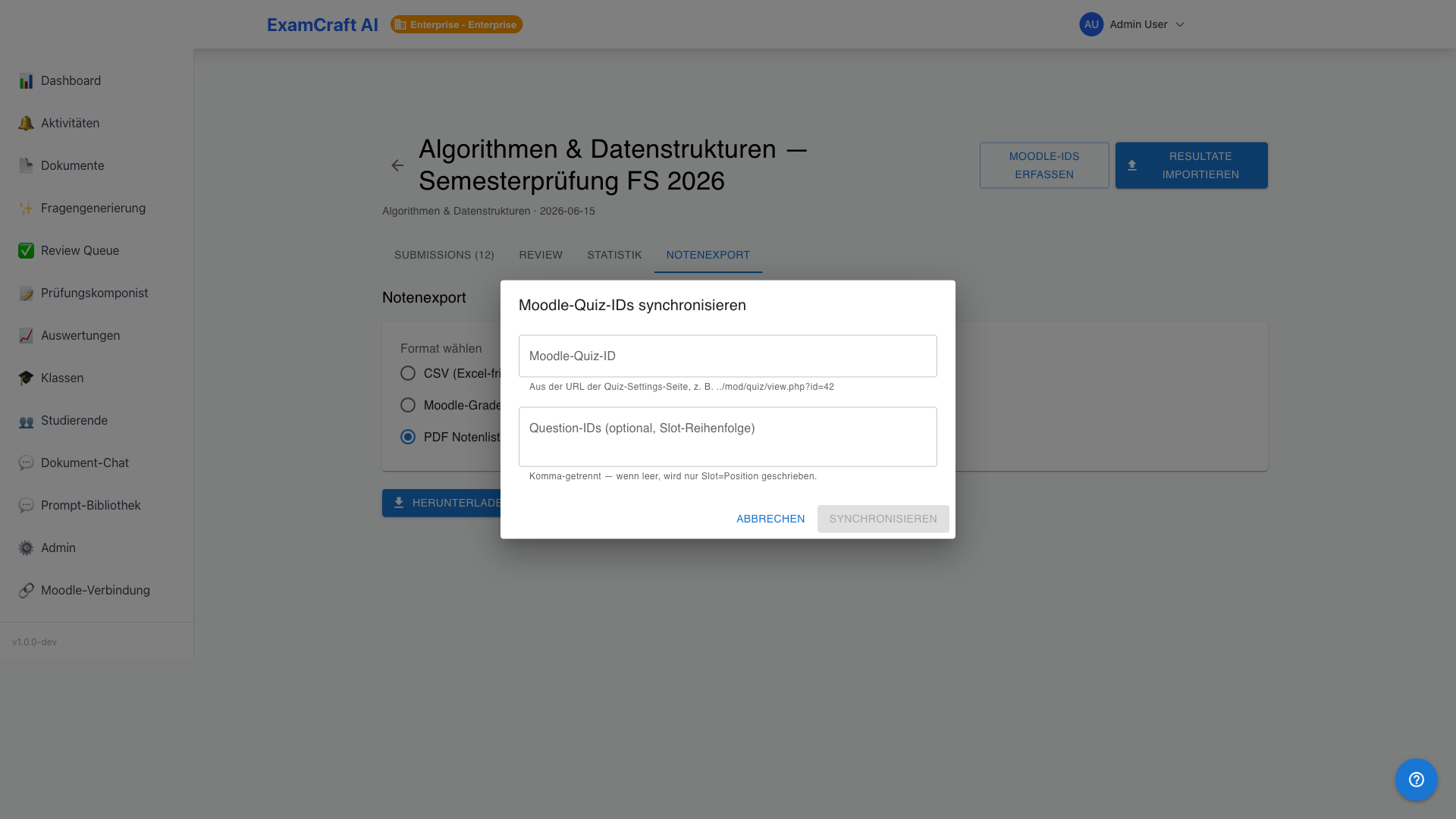
- Open the exam in the Exam Composer
- Click Synchronise Moodle IDs
- The dialog displays your ExamCraft questions alongside their Moodle counterparts
- Confirm the mapping — the IDs are saved permanently
After this step, API imports run fully automatically without manual mapping — even after re-exporting from Moodle.
Quota Limits
| Tier | Import Method | Exams/Month | Max. Submissions |
|---|---|---|---|
| Free | CSV only | 3 | 30 |
| Starter | CSV only | Unlimited | 50 |
| Professional | CSV + API | Unlimited | Unlimited |
| Enterprise | CSV + API + Bulk | Unlimited | Unlimited |