Activities
All Activities at a Glance
The Activities page shows all events from your institution in chronological order — with pagination, filter chips, and a toggle between your own and all activities.
Route: /aktivitaeten
Activities Overview
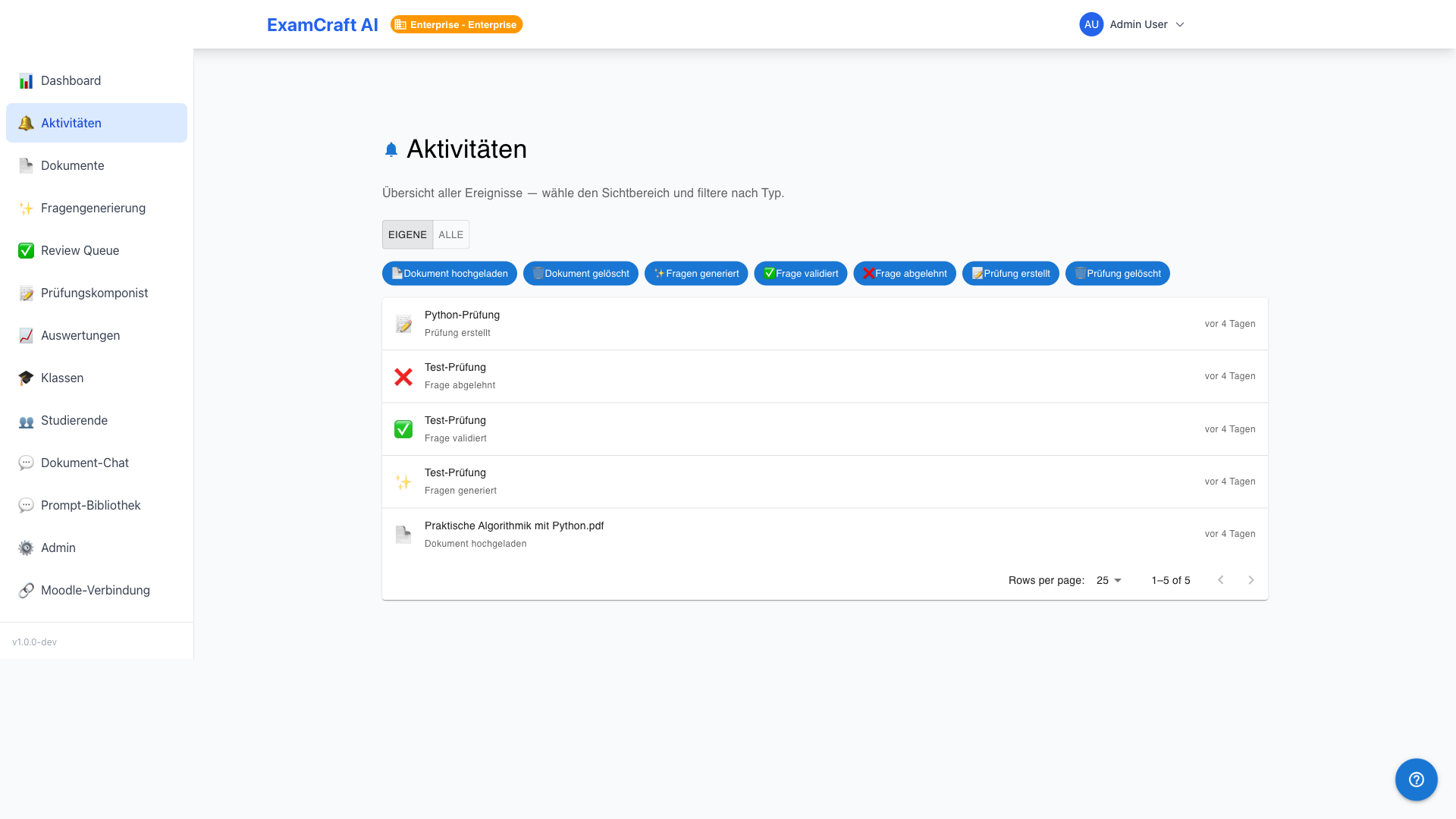
The page lists all activities with timestamp, type, description, and the user who performed the action. By default, only your own activities are visible.
Toggle: Own / All
Use the Own / All toggle in the top right to switch between:
| Mode | Visible Activities |
|---|---|
| Own | Only your own actions (default) |
| All | All activities of the institution (requires appropriate permission) |
The dashboard widget always shows only your own activities — the Activities page is the only place for the institution-wide view.
Filter Chips
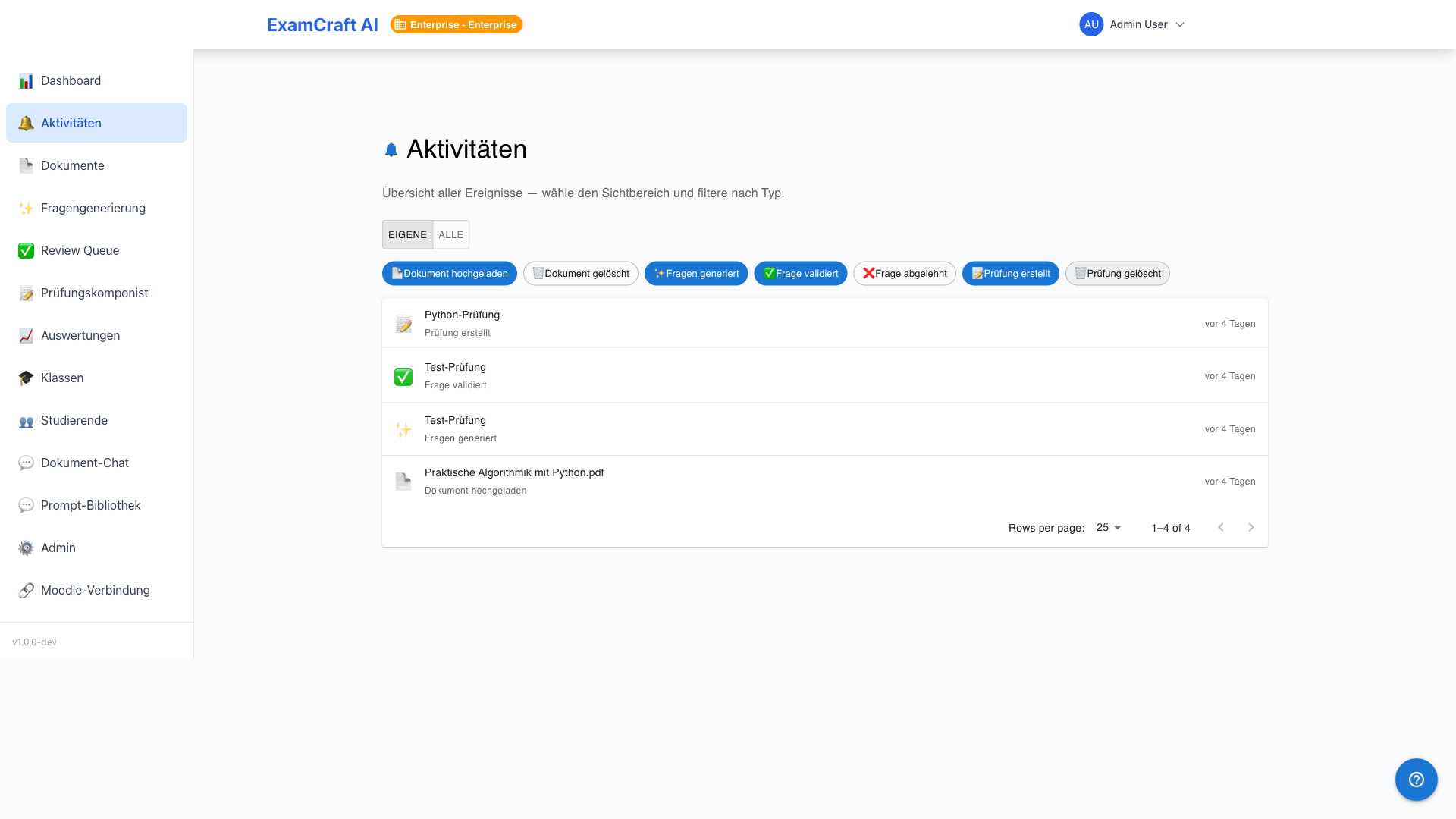
Seven filter chips narrow the view by activity type:
| Filter | Included Events |
|---|---|
| Documents | Upload, processing, deletion of documents |
| Exams | Creating, editing, archiving exams |
| Questions | Generation, review, changes to questions |
| Evaluations | CSV import, LLM scoring, review completion |
| Export | Grade export (CSV, Moodle CSV, PDF) |
| Classes | Creating classes, assigning members |
| Users | Login, logout, profile changes |
Multiple filters can be active simultaneously. Clicking an active chip deactivates it.
Pagination
The activities list is divided into pages. Select the page size via the dropdown in the bottom right:
- 25 entries per page (default)
- 50 entries per page
- 100 entries per page
Use the previous/next arrows to navigate between pages.
Empty State
When no activities match the active filters, an empty state is shown with a note about the active filters and a Reset Filters button.
What Counts as an Activity?
Activities are logged server-side — every action that modifies data or consumes an important resource creates an entry. Pure read operations (e.g. opening a document, viewing an exam) do not appear in the list.
Privacy Note
In Own mode you see exclusively your own activities. All mode displays the names and actions of all users in the institution — use this view responsibly.